
How to Use AdsPower Fingerprint Browser with Webshare
Take a Quick Look
Learn how to integrate AdsPower fingerprint browser with Webshare proxies. Set up single and bulk proxies for secure multi-account management on Amazon, Facebook, and more.
🔥 Limited-Time Offer! Save extra 10% off on your first monthly plan with code: Anitdetect10
Sign upHow to Use AdsPower Fingerprint Browser with Webshare
Managing multiple online accounts without triggering platform security checks requires two things: a browser that spoofs your digital fingerprint and a proxy network that masks your IP address. AdsPower, a leading anti-detect browser, gives you isolated browser environments with unique device fingerprints. Webshare delivers enterprise-grade proxies — residential, datacenter, and rotating — from over 195 countries. Together, they form a powerful stack for e‑commerce sellers, marketers, affiliate managers, and scraping engineers who need to operate dozens or even hundreds of accounts securely from one machine. This step‑by‑step guide walks you through the entire integration, from installing AdsPower to configuring single and bulk Webshare proxies, and provides practical scenarios where the combination shines.
Why Combine AdsPower and Webshare?
How to Use AdsPower Fingerprint Browser with Webshare product interface and feature overview.
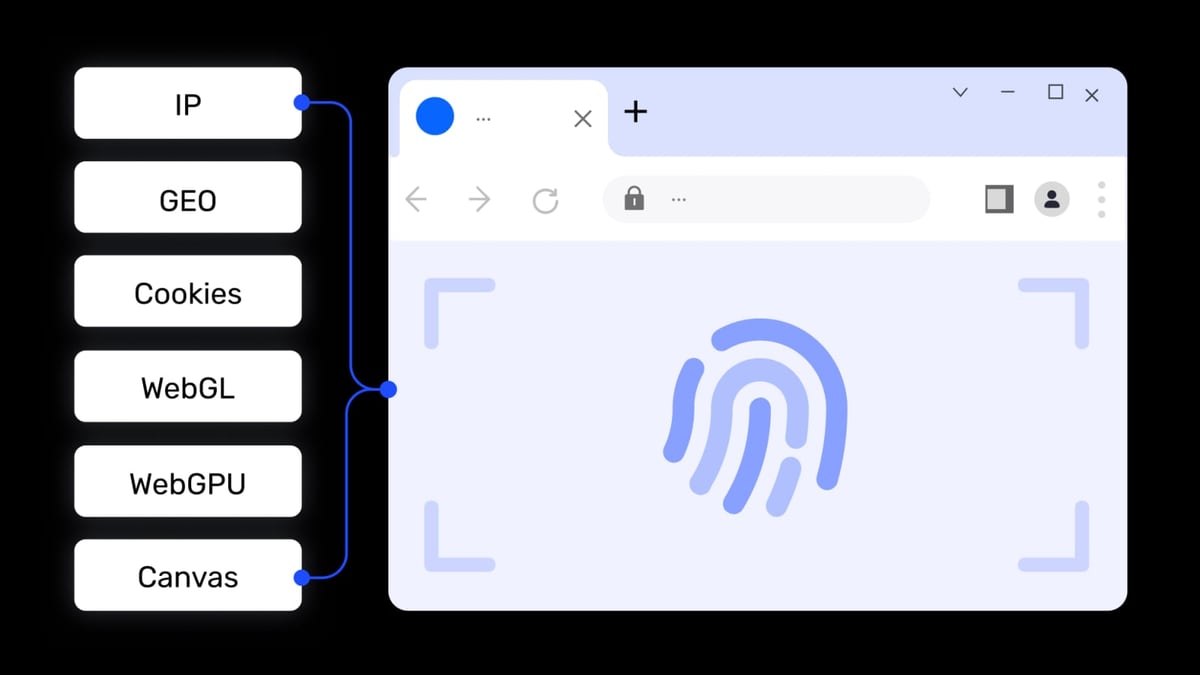
AdsPower creates isolated browser profiles, each with its own Canvas, WebGL, audio, WebRTC, and other fingerprint parameters. Without a unique IP address per profile, these environments are still vulnerable — platforms like Amazon, Facebook, TikTok, and Google cross‑reference IP data to detect account links. This is where Webshare comes in.
Webshare supplies an extensive IP pool (over 30 million IPs) with high uptime and DNS leak protection. When you pair an AdsPower profile with a Webshare proxy, every session gets a completely isolated fingerprint and a distinct, geolocated IP address. The result: each account appears to be a real, separate user on a different device in a different location. AdsPower’s proxy support covers HTTP, HTTPS, SOCKS5, and SSH, so you can use Webshare’s rotating residential, static residential, or datacenter IPs exactly the way your project demands.
What You’ll Need Before Starting
How to Use AdsPower Fingerprint Browser with Webshare product interface and feature overview.
Before configuring anything, make sure you have:
- An AdsPower account (the free plan gives you 2 browser environments; paid plans unlock more profiles, team features, and automation capabilities. You can compare editions on their site.)
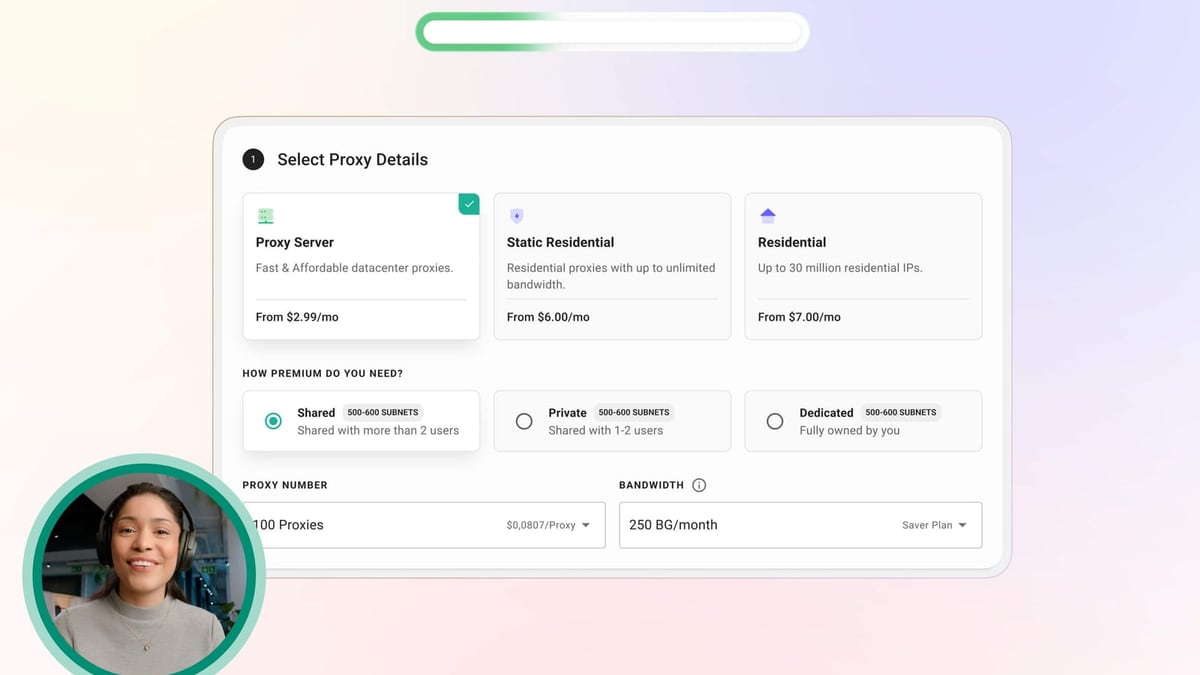
- A Webshare account — new users get 10 premium proxies for free, no credit card required.
- The AdsPower desktop application installed on Windows or macOS.
- Your preferred Webshare proxy details ready: host, port, username, and password (or the automatically generated endpoint from the dashboard).
How to Set Up a Single Proxy on AdsPower with Webshare
How to Use AdsPower Fingerprint Browser with Webshare product interface and feature overview.
This method connects one AdsPower browser profile to one Webshare proxy — ideal when you want a stable, long‑term IP for a social media or e‑commerce account.
Step 1: Download and Install AdsPower
Visit the official AdsPower website and download the client for your operating system. Install it and sign in with your account credentials.
Step 2: Create a New Browser Profile
Open the AdsPower application and click + New Profile. Give your profile a descriptive name (e.g., “Amazon US Seller 1”), and if you like, assign it to a group or add tags. Under Browser, choose the kernel you prefer: SunBrowser (Chromium) or FlowerBrowser (Firefox). Adjust the operating system and user agent as needed, or leave them on “Auto” to let AdsPower generate a realistic combination. Click OK to save the profile skeleton.
Step 3: Get Your Webshare Proxy Credentials
Inside your Webshare dashboard, you have two common ways to configure the proxy:
- Rotating residential proxy: Use the Endpoint Generator. Select a country, choose HTTP or SOCKS5, set the session type (rotating or sticky), and copy the hostname (usually
p.webshare.io) and port. Authentication uses your Webshare proxy username and password. - Static residential or datacenter proxy: Go to the Proxy List, pick an IP, and note the IP address, port, and your account credentials.
A typical rotating proxy configuration looks like this:
- Proxy type: HTTP or SOCKS5
- IP/Host:
p.webshare.io - Port: e.g.,
12345 - Username / Password: (from your proxy dashboard)
A static proxy is simpler:
- Proxy type: HTTP or SOCKS5
- IP/Host: e.g.,
198.172.338.798 - Port: e.g.,
2000 - Username / Password: (same as above)
Step 4: Enter Proxy Details in AdsPower
Go back to the AdsPower profile you just created. Open the Proxy tab located on the left. Select the matching proxy connection type — HTTP, HTTPS, or SOCKS5 — based on what you chose in Webshare. Then fill in the host, port, username, and password fields. AdsPower supports the popular host:port:username:password format, so you can simply copy a complete proxy string into the Proxy Host box and it will auto‑populate the other fields.
Click Check Proxy to test the connection. AdsPower will confirm whether the proxy is reachable and show an approximate latency. If it passes, click OK to save the profile with its proxy.
Step 5: Launch Your Isolated Browser
Head to Environment Management in the AdsPower sidebar. Find your new profile and click Open. A browser window will launch with the fingerprint parameters you set and the IP from Webshare. To double‑check, visit an IP checker like whatismyipaddress.com — you should see the proxy’s location, not your real IP.
How to Set Up Batch Proxies on AdsPower with Webshare
How to Use AdsPower Fingerprint Browser with Webshare product interface and feature overview.
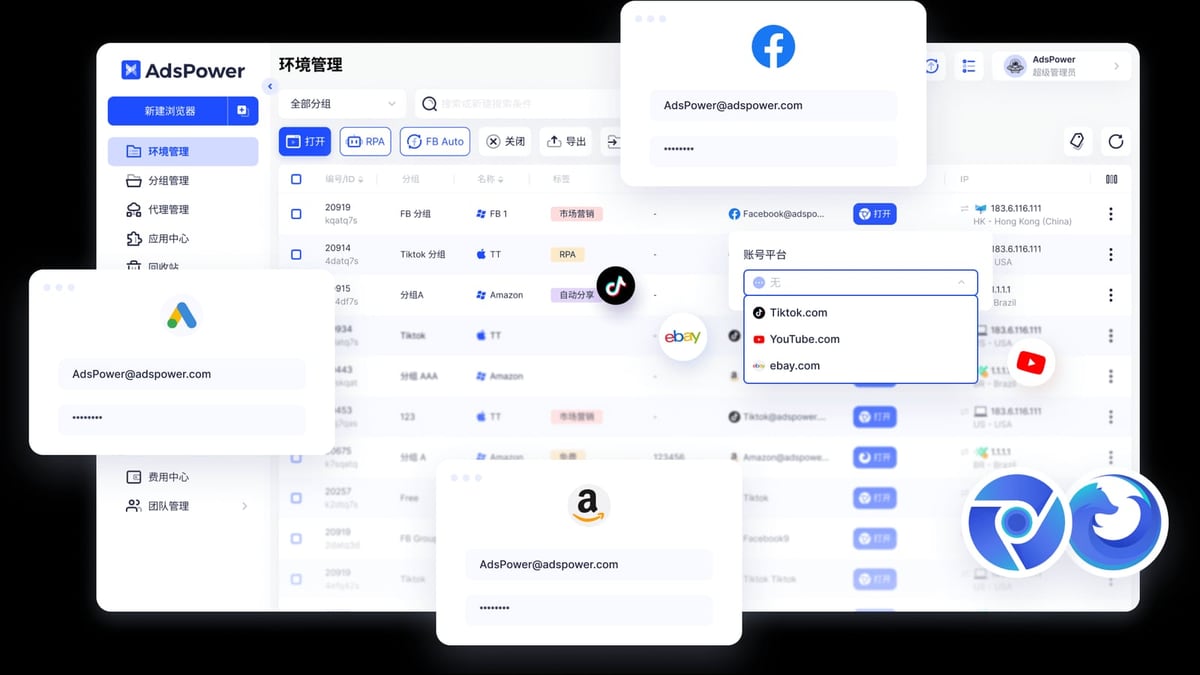
When you’re managing dozens of accounts, adding proxies one by one is impractical. AdsPower lets you import up to 500 proxies in bulk, and Webshare makes it easy to download your entire proxy list.
1. Export Your Webshare Proxy List
In the Webshare dashboard, go to Proxy List and click the Download button. Choose format as .csv or .txt. The file follows a standard format, usually:
http://username:password@ip:port
socks5://username:password@ip:port
Copy all lines from the file.
2. Import Proxies into AdsPower
In the AdsPower app, click Proxies in the sidebar, then Add Proxy. Switch to the Proxy List tab. Paste the proxy lines — one per line — into the text area. AdsPower automatically recognizes the proxy type, address, port, and credentials. Click Check Proxy to verify them all, then click OK to save.
3. Assign Proxies to Multiple Profiles
After the list is saved, you can link each proxy to a browser profile. While creating or editing a profile, open the Proxy dropdown and choose Select from Proxy List. Pick the one you need. For very large setups, AdsPower’s Local API (compatible with Selenium, Puppeteer, and Playwright) allows you to programmatically create profiles and assign proxies in one go — essential for fully automated workflows.
Practical Use Cases for AdsPower + Webshare
Multi‑Account E‑commerce (Amazon, eBay, Shopee)
Cross‑border sellers often run multiple seller accounts. Each must look like a unique business with a distinct IP from the target market. AdsPower isolates every browser environment, while Webshare provides a static residential IP from the seller’s chosen country. The combination avoids platform flags that would otherwise link accounts and cause suspensions.
Facebook Ad Agency Scaling
An agency managing 50 Facebook ad accounts can create 50 AdsPower profiles, each bound to a rotating residential IP from the appropriate region. Rotating IPs mimic normal user behavior, while AdsPower’s fingerprint customization keeps device parameters distinct. This drastically reduces the risk of ad account restrictions.
Web Scraping and Data Collection
For large‑scale scraping projects, AdsPower’s headless mode and Local API (see how it works with our Puppeteer review) pair seamlessly with Webshare’s rotating residential proxies. You can launch headless browser instances with unique fingerprints and fresh IPs on each request, bypassing anti‑scraping measures without building a custom IP rotation layer.
Social Media Marketing (TikTok, Instagram, Twitter)
Managing multiple brand or creator accounts often requires geo‑specific IPs to access localized content or avoid shadowbanning. With Webshare’s 195+ locations, you can assign a German proxy to your German TikTok profile and a US proxy to your US Instagram account — all within separate AdsPower environments — and switch between them instantly.
AdsPower vs Other Anti‑Detect Browsers: Why It Fits Webshare So Well
While many anti‑detect browsers support proxies, AdsPower stands out for raw configurability. It offers 20+ fingerprint parameters you can tweak manually, dual kernel support, and a built‑in proxy check tool that saves hours when testing hundreds of IPs. The proxy list import accepts Webshare’s export format out of the box, and you can assign different proxies to different profiles without opening each one. For a detailed side‑by‑side look, check our AdsPower vs Incogniton vs Dolphin Anty comparison.
Related reading
- Maskfog Fingerprint Browser Review 2026: Worth It for Multi-Accounts? - In-depth Maskfog review covering anti-detect browser features, pricing, setup, and real-world use cases. Find out if this cross‑border e‑commerce tool fits your workflow.
- GoLogin Review 2026: Anti-Detect Browser Tested & Rated - In-depth GoLogin review: features, pricing, fingerprinting, pros/cons, and real user feedback. See if this anti-detect browser fits your multi-account workflow.
- Top 10 SMS Verification Services in 2026: Virtual Numbers for Account Codes - Discover the 10 best SMS verification services for receiving virtual numbers in 2026. Compare one-time activations, long-term rentals, pricing, and non-VoIP reliability.
Frequently Asked Questions
Can I use Webshare’s free proxies with AdsPower?
Yes. Every new Webshare account includes 10 free proxies with 1GB of bandwidth per month. They’re perfect for testing the integration. For production multi‑account operations, a paid Webshare plan is recommended for higher bandwidth and IP availability.
Does AdsPower support Webshare’s rotating residential proxies?
Absolutely. Use the Webshare endpoint generator to configure your preferred location and session type (sticky or rotating), then plug the host, port, username, and password into AdsPower’s proxy settings. Both HTTP and SOCKS5 are supported.
How do I verify that my proxy is working inside the AdsPower profile?
Use the Check Proxy button in the profile settings first. Once the browser launches, visit an IP‑checking website. If you see the proxy’s location and the IP matches your Webshare dashboard, the setup is correct.
Can I automate profile creation with Webshare proxies?
Yes. AdsPower’s Local API lets you create profiles and assign proxies programmatically. It integrates with Selenium, Playwright, and Puppeteer, so you can script entire test or scraping pipelines that spin up isolated environments with fresh Webshare IPs on demand.
Is this combination safe for sensitive platforms like Google or PayPal?
No tool can guarantee 100% immunity from bans, but the combination of unique fingerprint isolation and high‑quality residential IPs from Webshare minimizes detection vectors dramatically. Always follow each platform’s terms of service and avoid suspicious behavior.
Conclusion
AdsPower and Webshare together give you full control over both device fingerprints and network identity. The integration is straightforward: download AdsPower, grab your proxy details from Webshare, plug them into a profile, and you have an isolated, location‑specific browser in minutes. Bulk import scales the process for teams and agencies. Whether you’re protecting e‑commerce accounts, scaling ad campaigns, or scraping at volume, this stack offers a reliable foundation.
At AdsPower, we continuously test tool integrations that boost operational security and efficiency. For more in‑depth comparisons — such as AdsPower vs MoreLogin vs MuLogin or guidance on SMS verification for account creation — explore our library of practical guides.
For official documentation, refer to the AdsPower help center and the Webshare proxy integration guide.