
How to Use AdsPower with NetNut Proxies: Step-by-Step Setup
Take a Quick Look
Learn to integrate NetNut proxies into AdsPower fingerprint browser for flawless multi-account management and web scraping. Step-by-step guide with tips.
🔥 Limited-Time Offer! Save extra 10% off on your first monthly plan with code: Anitdetect10
Sign upHow to Use AdsPower with NetNut Proxies: A Complete Integration Guide
Managing multiple online accounts while staying under the radar requires two things: a browser environment that spoofs your device fingerprint, and residential proxies that hide your real IP. AdsPower fingerprint browser and NetNut proxies solve exactly this – one gives you isolated, anti-detect profiles, the other provides stable, rotating residential IPs. This guide walks you through pairing the two so you can scale e-commerce, social media, or data scraping operations without bans.
Before you start, check our NetNut Review 2025 to understand the proxy network’s speed and reliability.
Why Pair AdsPower with NetNut?
How to Use AdsPower with NetNut Proxies: Step-by-Step Setup product interface and feature overview.
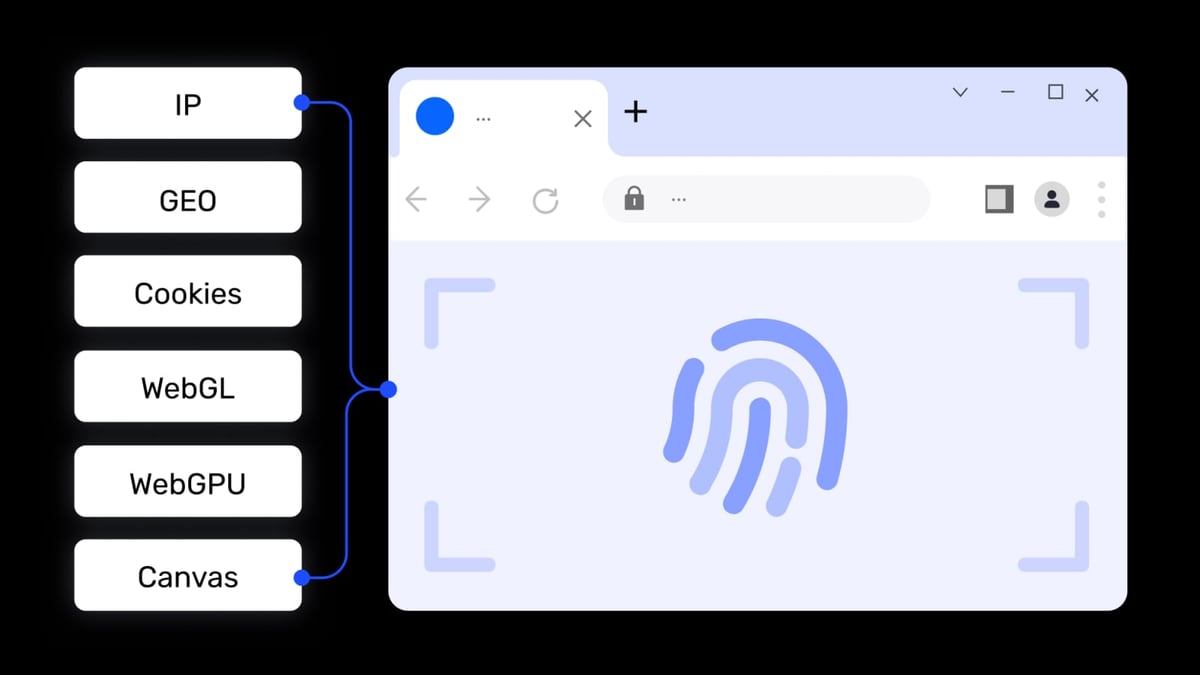
AdsPower creates virtual browser environments with unique digital fingerprints (Canvas, WebGL, audio, fonts, etc.), preventing platforms from associating your accounts through device parameters. But a fresh fingerprint alone isn’t enough – if all your profiles share the same IP address, linking becomes trivial. NetNut adds a layer of network anonymity by routing each profile through a different residential IP from its massive pool. Together, they break both device and network-based association.
Problems the combination solves:
- IP bans and rate limiting: Rotating residential IPs prevent services from detecting automated or bulk access patterns.
- Fingerprint leaks: Even with a proxy, browser inconsistencies can expose you. AdsPower ensures every environment reports a coherent, unique device profile.
- Geo-restrictions: NetNut’s global IP pool lets you appear from virtually any country, unlocking localized content, ad verification, and marketplace access.
- Operational cost: Avoid buying dozens of physical devices or cloud servers; run all your accounts from one machine safely.
Prerequisites
How to Use AdsPower with NetNut Proxies: Step-by-Step Setup product interface and feature overview.
- AdsPower client installed (free tier gives 2 environments; paid plans unlock more).
- NetNut account with an active proxy plan (residential, ISP, or mobile).
- Basic familiarity with proxy concepts (host, port, username, password).
Step 1: Get Your NetNut Proxy Credentials
How to Use AdsPower with NetNut Proxies: Step-by-Step Setup product interface and feature overview.
Log into the NetNut dashboard and navigate to your proxy endpoint. Depending on your subscription, you’ll find a gateway hostname (like gw.netnut.io) and a port (e.g., 9000 for residential). NetNut supports username/password authentication; your dashboard will show a unique username and password. You can also create sub-users for granular control.
Typical format:
- Host:
gw.netnut.io(or a dedicated endpoint) - Port:
9000(residential),9595(ISP), etc. - Username:
your-username - Password:
your-password
For advanced IP rotation or sticky sessions, refer to NetNut’s documentation. Most users select rotating residential – each request gets a new IP, ideal for scraping and multiple accounts.
Step 2: Create a New Browser Profile in AdsPower
How to Use AdsPower with NetNut Proxies: Step-by-Step Setup product interface and feature overview.
Open AdsPower and click the New Browser button on the dashboard. Give the profile a memorable name – for example, Amazon-Seller-US-1. Choose a group for organization. Select the browser kernel: SunBrowser (Chrome-based) or FlowerBrowser (Firefox). Chrome works best for most platforms; use Firefox if you need SOCKS5 proxy support with authentication.
If you’re new to AdsPower, see the official quick start guide for a visual walk-through.
Step 3: Configure NetNut Proxy in AdsPower
Inside the New Browser dialog, scroll to the Proxy Settings section.
- Proxy Type: Choose
httporhttpsfor Chrome kernel,socks5for Firefox kernel. (NetNut provides HTTP/HTTPS/SOCKS5 endpoints – confirm with your dashboard.) - Proxy Host – paste the NetNut hostname, e.g.,
gw.netnut.io - Proxy Port – enter the appropriate port, e.g.,
9000 - Proxy User / Proxy Password – fill in your NetNut credentials.
AdsPower offers an auto-fill trick: if you copy the entire proxy string in the format host:port:user:password, paste it directly into the Proxy Host field, and AdsPower will parse it automatically.
Click Check Proxy to test connectivity. A green “Successful” message confirms AdsPower can reach NetNut’s servers. If it fails, double-check the credentials and ensure your local network doesn’t block the port. For detailed proxy troubleshooting, consult AdsPower’s proxy network testing guide.
Step 4: Verify Fingerprint and IP
Once the environment is created, open it from the Environment Management list. Visit a leak-test site like browserscan.net or whoer.net. You should see the NetNut IP address and location in the output, while the fingerprint details show the customized AdsPower profile – no real device data. If the detected timezone, language, or WebRTC IP doesn’t match the proxy location, adjust the corresponding fingerprint parameters in AdsPower’s advanced settings to avoid mismatches.
Advanced Integration: Using NetNut with AdsPower Automation
For high-volume operations, you can combine AdsPower’s automation features with NetNut’s IP rotation.
- RPA (Robotic Process Automation): AdsPower’s built-in no-code RPA lets you record and replay repetitive actions across multiple profiles. Assign a unique NetNut proxy to each environment so that every automated profile appears from a different IP.
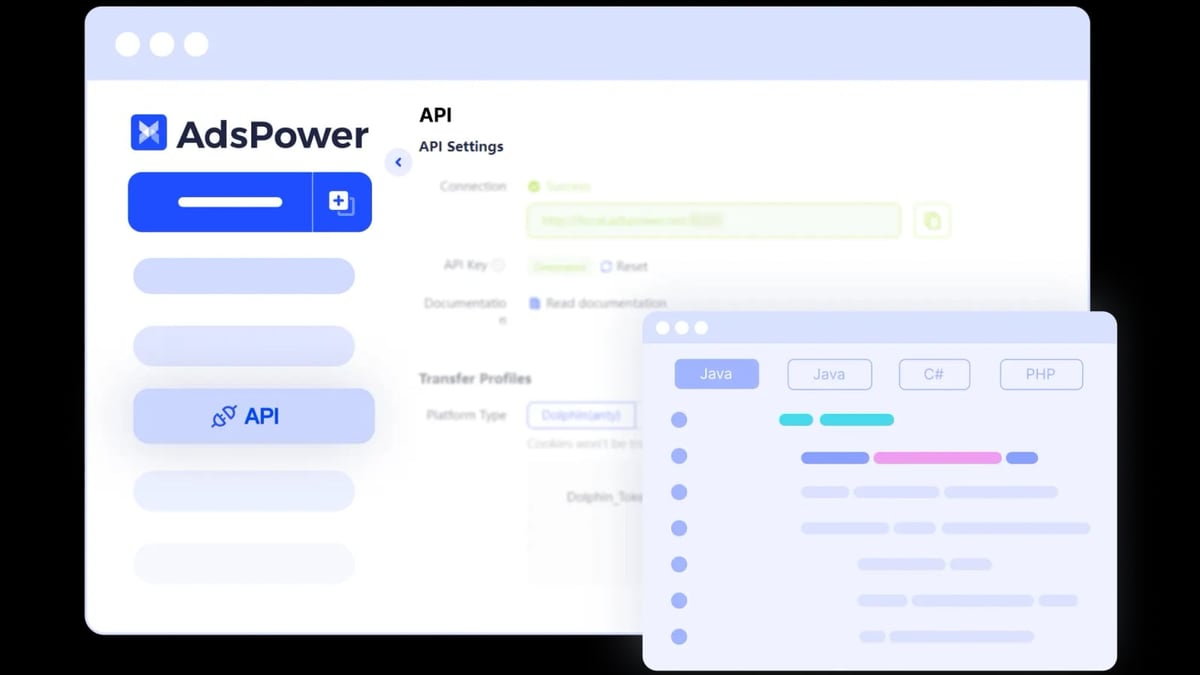
- Local API and Selenium/Playwright: AdsPower exposes a Local API that opens and controls browser instances programmatically. Pair this with NetNut’s rotating proxy parameter (e.g., appending
-session-<id>to the username for sticky sessions) to create an on-demand scraping farm. When scripting in Selenium or Playwright, simply pass the proxy details through AdsPower’s environment profile – no need to configure the proxy at the driver level. Explore our Top 10 Browser Automation Frameworks of 2026 to find the best tool for your stack.
Practical Examples
Multi-Account E-commerce Management
A cross-border seller manages five Amazon US seller accounts. With AdsPower, they create five isolated browser profiles, each with a unique fingerprint and a dedicated NetNut residential IP from different US cities. The seller can log in and operate all accounts simultaneously without Amazon linking them through IP or device parameters.
Ad Verification at Scale
A marketing agency needs to verify Google Ads placements across five countries. They spin up AdsPower profiles with geolocated NetNut IPs (e.g., UK, Germany, Japan). Each profile’s timezone, language, and WebRTC settings are aligned to the proxy location. They browse search results and capture screenshots daily, all automated via AdsPower’s Local API.
Competitor Price Scraping
An e-commerce intelligence team scrapes product prices from dozens of retail sites. They use AdsPower with NetNut rotating residential IPs. Each request goes through a fresh proxy, avoiding blocks. AdsPower’s fingerprint isolation prevents the sites from linking scraping sessions. The team leverages AdsPower’s Selenium integration to extract data and store it in a database.
Troubleshooting Common Proxy Issues
“Check Proxy” fails
Double-check host, port, and credentials. Ensure your NetNut subscription is active and you haven’t exceeded IP whitelist restrictions. Try a different protocol (HTTP vs SOCKS5) or kernel.
IP leak in browser
If browserscan.net still shows your real IP, check that WebRTC is disabled in AdsPower’s fingerprint settings. Use the “Protect WebRTC” option and select “Replace WebRTC IP with proxy IP”.
Sites detect proxy use
Some platforms blacklist known data center IPs. Use NetNut’s residential or ISP proxies, which come from real consumer devices. If issues persist, switch to mobile proxies for the strictest sites.
Related reading
- AdsPower vs Hidemyacc vs Indigo: Anti-Detect Browser Comparison - Compare AdsPower, Hidemyacc, and Indigo antidetect browsers for privacy, automation, and multi-account security. Find which fingerprint browser fits your workflow.
- SSL Proxies Review: Free HTTPS Proxy List for Scraping & Privacy - Real-world review of SSL Proxies free proxy list: fresh HTTPS/SSL proxies updated every 10 minutes. See performance, use cases, and whether it fits your scraping or privacy needs.
- Genlogin Review: Anti-Detect Browser for Multi-Account Management - Unbiased Genlogin review 2025: see real user ratings, automation, fingerprinting, pricing, and whether this anti-detect browser fits your multi-account workflow.
FAQ
Why do I need a proxy inside AdsPower when it already hides my fingerprint?
A fingerprint profiles your device; an IP reveals your network. Without a proxy, every AdsPower environment would share the same IP, making it trivial for platforms to link them. A proxy cloaks the network origin so each profile appears unique on both fronts.
Can I use NetNut’s rotating residential IPs with AdsPower for each new session?
Yes. Simply configure the NetNut endpoint with port 9000 (residential rotation). Each time you open the AdsPower environment, NetNut will assign a fresh residential IP. For long-running sessions where you need the same IP, use NetNut’s sticky session parameter in the username field (e.g., username-session-abc).
How do I test that my proxy is working in AdsPower?
After creating the browser profile with NetNut credentials, use AdsPower’s built-in “Check Proxy” button for an initial network test. Then open the environment and visit browserscan.net or whoer.net to confirm the displayed IP matches NetNut’s proxy and that no real IP leaks through WebRTC.
Does NetNut support SOCKS5 for AdsPower’s Firefox kernel?
Yes. NetNut provides SOCKS5 access. In AdsPower’s FlowerBrowser (Firefox kernel), select socks5 as the proxy type and fill in the same credentials you’d use for HTTP. This is particularly useful when the target website is sensitive to proxy types.
Conclusion
Pairing AdsPower with NetNut gives you a bulletproof setup for any multi-account or scraping workflow. AdsPower handles the digital identity and automation, while NetNut supplies fresh residential IPs that keep your operations undetected. Whether you’re managing seller accounts across platforms, verifying ads worldwide, or harvesting public web data, this duo eliminates the two biggest threats: fingerprint association and IP blacklisting. Start with a few profiles, test the water, and scale confidently – no more devices, no more bans.