
How to Use AdsPower with BrowserScan: Setup & Workflow
Take a Quick Look
Learn how to combine AdsPower anti-detect browser with BrowserScan fingerprint testing to verify profiles, catch IP leaks, and prevent account bans.
🔥 Limited-Time Offer! Save extra 10% off on your first monthly plan with code: Anitdetect10
Sign upHow to Use AdsPower with BrowserScan: A Complete Verification Workflow
AdsPower creates isolated browser profiles with unique digital fingerprints, but even the best anti-detect setup can fail if a proxy leaks, a timezone mismatches, or a WebRTC setting exposes your real IP. BrowserScan fills that gap. It is a free, browser-based diagnostic platform that shows exactly what websites see when your AdsPower profile connects. This guide walks through why the two tools belong together, how to run effective checks, and how to fix the most common issues the tests reveal.
Why Pair AdsPower with BrowserScan?
BrowserScan product interface.
AdsPower is a control layer. It lets you define fingerprints, assign proxies, and automate multi-account workflows. BrowserScan is a measurement layer. It reports whether those configurations actually hold up under inspection.
Think of it like a car dashboard. AdsPower is the engine and steering system; BrowserScan is the gauge cluster telling you whether the engine is overheating or a tire is losing pressure. You would not drive a fleet of accounts without checking the gauges.
This combination solves three recurring problems for multi-account operators:
- Silent proxy failures — A proxy can connect successfully while still leaking your real IP through WebRTC or DNS. BrowserScan catches this before the platform you are targeting does.
- Fingerprint inconsistency — A profile may look correct in AdsPower's interface but expose mismatched Canvas, WebGL, or user agent data to detection scripts. BrowserScan verifies the external view.
- Environment drift — Browser updates, new extensions, or changed OS settings can alter fingerprints over time. Regular BrowserScan checks catch drift before it triggers account locks.
For a deeper look at how AdsPower builds fingerprints and why consistency matters, see AdsPower vs MuLogin vs Maskfog: How to Choose an Anti-Detect Browser in 2026.
What BrowserScan Actually Tests
How to Use AdsPower with BrowserScan: Setup & Workflow - What BrowserScan Actually Tests.
Before running a workflow, it helps to understand what the tool measures. BrowserScan performs several categories of checks inside your active browser session:
Fingerprint Signals
- User agent — the browser, OS, and version string sent to every site
- Canvas fingerprint — a hash generated by how the browser renders hidden graphics
- WebGL renderer — GPU and driver information that can identify hardware
- Fonts and screen resolution — installed font lists and display dimensions
- Audio context — subtle differences in audio processing hardware
- Client hints — HTTP headers that reveal device and browser details
Network and IP Signals
- Public IP address — what the destination server sees
- ISP and geolocation — the network provider and approximate location tied to that IP
- DNS resolvers — which servers handle domain lookups, and whether they match the proxy
- WebRTC leak status — whether real network interfaces are exposed despite the proxy
- Proxy detection — whether the IP is flagged as a known datacenter, VPN, or residential address
Security and Performance Checks
- Port scanner — identifies open ports that could signal a vulnerable or non-standard setup
- Internet speed test — measures latency, download, and upload throughput through the profile's network path
This breadth makes BrowserScan more useful than single-purpose tools. Instead of running three different sites to check a fingerprint, an IP, and a WebRTC leak, you get one consolidated report.
Step-by-Step: Testing an AdsPower Profile with BrowserScan
Here is a repeatable workflow you can use for every new profile and for periodic audits of existing ones.
Step 1: Create or Open the AdsPower Profile
Launch AdsPower and either create a new browser profile or open an existing one. When creating a profile, pay attention to these settings:
- Browser core — use the latest Chrome-based engine available in AdsPower
- Operating system — match the OS to the proxy's geolocation when possible
- User agent — let AdsPower generate one that matches the browser core
- Proxy — assign the proxy you intend to use for this account, whether residential, mobile, or datacenter
- WebRTC mode — set to "Replace" or "Disable" depending on your workflow; never leave it on the default that exposes the real IP
If you are unsure which proxy type fits your use case, the Top 10 Residential Proxy Networks 2026: Tested & Ranked guide can help you choose.
Step 2: Open BrowserScan Inside the Profile
With the AdsPower profile running, navigate to the BrowserScan website directly inside that profile window. Do not open BrowserScan in your regular browser — the whole point is to test the isolated environment, not your daily driver.
The site automatically runs a full fingerprint scan. Within a few seconds, you will see:
- A fingerprint status indicating how unique or common the profile appears
- An authenticity percentage estimating how "real" the environment looks
- A breakdown of individual signals below the summary
Step 3: Verify the IP and Proxy Alignment
Scroll to the IP section and confirm three things:
- The displayed IP matches the proxy you assigned in AdsPower — not your home or office IP.
- The geolocation matches the proxy's advertised location. A US proxy showing a Singapore IP is a red flag.
- The ISP and proxy type are consistent with what you purchased. A "residential" proxy that BrowserScan flags as a datacenter IP can trigger platform suspicion.
If the IP is wrong, the proxy is not routing correctly. Check the proxy credentials in AdsPower, test the proxy in a plain browser, or contact your proxy provider.
Step 4: Run the WebRTC Leak Test
Even when the public IP looks correct, WebRTC can expose your real network address. BrowserScan has a dedicated WebRTC leak test. Run it and look for any local IP addresses (like 192.168.x.x) or your real public IP appearing alongside the proxy IP.
If a leak appears, return to AdsPower and change the WebRTC setting for that profile. The "Replace" mode substitutes the proxy IP into WebRTC requests, while "Disable" turns WebRTC off entirely. Re-run the test after changing the setting.
Step 5: Review Fingerprint Consistency
Look at the fingerprint section for mismatches. Common issues include:
- Timezone vs. IP location — a New York IP with a London timezone is an instant red flag
- Language vs. geolocation — an English-only browser on a German IP looks unnatural
- Canvas or WebGL hash — if the hash is identical across multiple profiles, the fingerprints are not isolated properly
- Screen resolution — unusual resolutions that do not match common device profiles
AdsPower lets you adjust each of these parameters per profile. Make changes, then refresh BrowserScan to confirm the new values appear correctly.
Step 6: Document the Results
For teams managing dozens or hundreds of profiles, create a simple verification log. Record the profile name, date, proxy used, BrowserScan authenticity score, and any issues found. This creates an audit trail and helps you spot patterns — for example, a specific proxy provider that consistently fails WebRTC checks.
Practical Example: Setting Up a Facebook Ads Profile
How to Use AdsPower with BrowserScan: Setup & Workflow - Practical Example: Setting Up a Facebook Ads Profile.
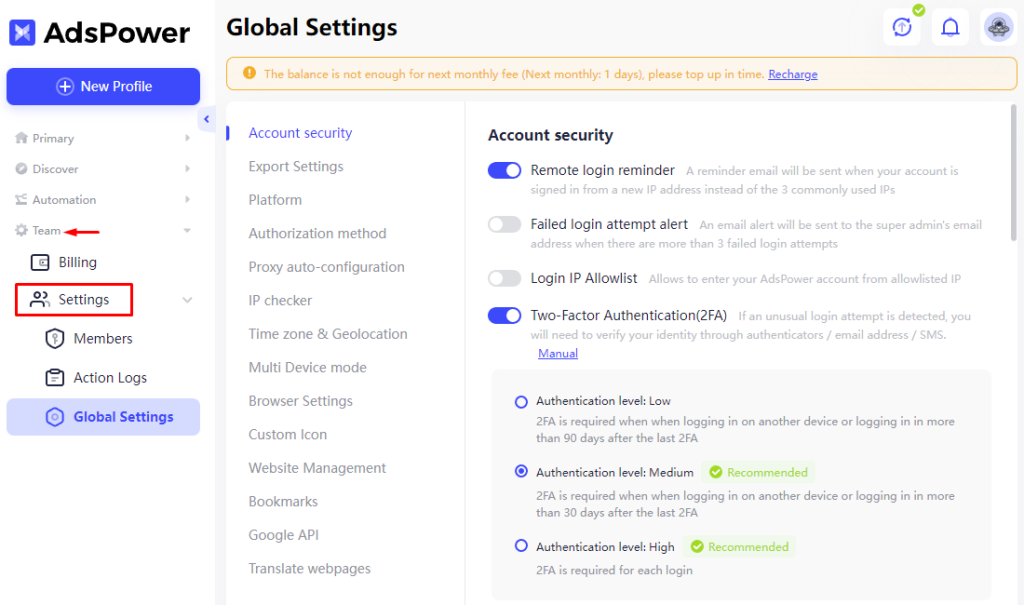
Here is how the workflow looks in a real scenario. Suppose you are preparing an AdsPower profile for a Facebook Ads account targeting the US market.
Setup in AdsPower:
- Profile name:
FB-Ads-US-01 - Proxy: US residential proxy (e.g., from a provider like IPRoyal or Proxy-Cheap)
- Timezone: America/New_York
- Language: English (United States)
- WebRTC: Replace
- User agent: Chrome on Windows, matching the latest AdsPower core
BrowserScan verification:
- Open BrowserScan inside
FB-Ads-US-01. - Confirm the IP shows a US residential address with a matching ISP.
- Run the WebRTC test — no local IPs should appear.
- Check the timezone matches the IP's location (Eastern Time).
- Confirm the user agent matches the browser core and OS.
- Note the authenticity score. If it is below 90%, investigate which signal is dragging it down.
Result: The profile is ready for use. Repeat this check before launching a new campaign or after any AdsPower update.
Common Problems BrowserScan Reveals — and How to Fix Them
Problem 1: Real IP Leaking Through WebRTC
Symptom: BrowserScan shows your actual home or office IP in the WebRTC section, even though the proxy IP appears correct elsewhere.
Fix: In AdsPower, open the profile settings and change WebRTC mode to "Replace" or "Disable." Re-test. If the leak persists, check whether any browser extensions in the profile are overriding WebRTC behavior.
Problem 2: DNS Leak Exposing Your Real ISP
Symptom: The IP address matches the proxy, but the DNS resolver shown by BrowserScan belongs to your local ISP.
Fix: Ensure the proxy in AdsPower is configured to handle DNS requests (most SOCKS5 proxies do this automatically). If you are using an HTTP proxy, consider switching to SOCKS5. You can also set custom DNS servers in the profile settings. For more on this topic, see DNS Leaks Explained: Secure AdsPower Profiles with the Right Proxy.
Problem 3: Fingerprint Too Unique
Symptom: BrowserScan reports a very low similarity score or flags the fingerprint as highly unique.
Fix: Review which signals are unusual. Common culprits include rare screen resolutions, non-standard font sets, or mismatched Canvas/WebGL outputs. In AdsPower, reset those parameters to match common device profiles, or use the randomization feature with conservative settings.
Problem 4: Proxy IP Flagged as Datacenter
Symptom: BrowserScan's proxy detection labels your IP as a datacenter or VPN address, even though you purchased a residential proxy.
Fix: This usually indicates a proxy quality issue. Test the same proxy in a clean browser. If it is still flagged, contact your provider. For high-stakes accounts, switch to a verified residential or mobile proxy. The Proxy-Cheap Review 2026: Pricing, Features & Verdict covers one budget-friendly option worth evaluating.
Problem 5: Timezone and IP Location Mismatch
Symptom: BrowserScan shows the correct proxy IP but a timezone that belongs to a different region.
Fix: In AdsPower, manually set the timezone to match the proxy's geolocation. Do not rely on automatic detection, which can fail when proxies route through intermediate servers.
BrowserScan vs. Other Fingerprint Testing Tools
BrowserScan is not the only option, but it fills a specific niche. Here is how it compares to common alternatives:
| Tool | Fingerprint Analysis | IP/Proxy Check | WebRTC Leak Test | Port Scanner | Speed Test |
|---|---|---|---|---|---|
| BrowserScan | Yes, with score | Yes | Yes | Yes | Yes |
| AmIUnique | Yes, detailed | No | No | No | No |
| Pixelscan | Yes, advanced | Partial | Yes | No | No |
| BrowserLeaks | Yes, technical | Partial | Yes | No | No |
| Whoer.net | Yes | Yes | Yes | No | Yes |
BrowserScan's advantage is the all-in-one nature. For AdsPower users who want to verify a profile quickly without juggling multiple tabs, it is the most efficient choice. The authenticity score also gives a quick benchmark you can track over time.
How Often Should You Run BrowserScan Checks?
The frequency depends on your risk level and workflow:
- New profile creation — always test before first use
- High-value accounts (payment-linked, aged accounts) — test weekly
- After AdsPower updates — test a sample of profiles to confirm nothing changed
- After proxy changes — test immediately
- Bulk operations — test a random sample of 5–10% of profiles before launching
For teams using automation, you can integrate these checks into your workflow. AdsPower's Local API works with Selenium and Puppeteer, which means you could script a routine that opens each profile, loads BrowserScan, and captures the results. If you are already using AdsPower for scraping or automation, the How to Use AdsPower with Puppeteer: Full Setup Guide provides relevant code patterns.
Limitations to Keep in Mind
BrowserScan is a diagnostic tool, not a protection layer. It will not anonymize you, hide your IP, or prevent tracking on its own. It only reports what is visible. The actual protection comes from AdsPower's fingerprint management and your proxy configuration.
Also, fingerprint detection methods evolve. A profile that passes BrowserScan today might be flagged tomorrow by a platform using newer techniques. Regular re-testing and staying current with AdsPower updates are essential.
Finally, BrowserScan's speed test results depend on server location and current network load. Treat those numbers as rough indicators rather than precise benchmarks.
Related reading
- How to Use AdsPower with Beautiful Soup for Scraping - Learn how to combine AdsPower anti-detect browser with Beautiful Soup for reliable, ban-resistant web scraping. Step-by-step setup, code examples, and use cases.
- MuLogin Anti-Detect Browser Review 2026: Worth It? - Evidence-based MuLogin review covering pricing, fingerprinting, setup, strengths, limitations, and how it compares to alternatives for multi-account management.
Sources and further reading
- What is BrowserScan? Check Fingerprints, IP Leaks & Stay Private - What is BrowserScan? Find out how it detects IP leaks & unique fingerprints, plus tips for privacy with AdsPower.
- Free Online Tools: Check Your IP and Browser Fingerprint - Explore the best free fingerprint tools 2026 here. Check your IP address, browser fingerprints and privacy leaks instantly in one click.
Frequently Asked Questions
Does BrowserScan work inside AdsPower profiles?
Yes. BrowserScan runs entirely in the browser, so it works inside any AdsPower profile. Open the BrowserScan site within the profile window to test that specific environment.
Can BrowserScan detect my real IP even when using an AdsPower proxy?
BrowserScan can reveal IP leaks through WebRTC or DNS if those are not properly configured. This is exactly why you should test: it shows what a website would see, including any leaks your proxy setup might be exposing.
What is a good BrowserScan authenticity score?
Scores above 90% generally indicate a well-configured profile. Scores below 80% suggest noticeable inconsistencies. However, the score is a guideline — always review the individual signals rather than relying on the number alone.
Do I need BrowserScan if I already use AdsPower?
AdsPower manages fingerprints, but it does not independently verify how external sites perceive those fingerprints. BrowserScan provides that external validation. The two tools serve different functions and work best together.
Is BrowserScan free to use?
Yes. BrowserScan's core tools — fingerprint analysis, IP lookup, WebRTC leak test, port scanner, and speed test — are all free and require no installation or account.
Can I automate BrowserScan checks across multiple AdsPower profiles?
Yes, with some effort. AdsPower's Local API supports automation via Selenium or Puppeteer. You can script a routine that opens each profile, navigates to BrowserScan, and captures key results for logging.
Conclusion
AdsPower and BrowserScan solve different halves of the same problem. AdsPower gives you control over browser fingerprints and proxy routing; BrowserScan tells you whether that control is actually working in the real world. By making BrowserScan checks a standard part of your profile setup and maintenance routine, you catch leaks and inconsistencies before platforms do — and that is the difference between a stable multi-account operation and a wave of unexpected bans.
Start with a single profile. Create it in AdsPower, open BrowserScan inside it, and work through the six-step verification process above. Once the workflow feels natural, apply it to every profile you manage. The few minutes per profile is a small price for the accounts you protect.
For more on choosing the right anti-detect browser for your needs, see AdsPower vs Octo Browser vs BitBrowser: 2026 Tested.