
Manage Multiple Shopify Stores with AdsPower Fingerprint Browser
Take a Quick Look
Learn how to use AdsPower fingerprint browser for Shopify multi-store management. Step-by-step setup, proxy integration, automation, and team collaboration.
🔥 Limited-Time Offer! Save extra 10% off on your first monthly plan with code: Anitdetect10
Sign upManage Multiple Shopify Stores with AdsPower Fingerprint Browser
Running several Shopify stores from a single laptop used to be a recipe for disaster. Shopify itself doesn’t explicitly ban multi-store ownership, but the ecosystem around it—payment gateways, advertising platforms, and third‑party apps—often flags accounts that share device fingerprints. If your stores get linked, you risk payment holds, ad account bans, or even permanent store suspension. AdsPower fingerprint browser solves this by giving each Shopify store its own isolated digital identity, so you can manage a whole portfolio safely from one device. This guide walks you through exactly how to set up AdsPower for Shopify, automate repetitive tasks, and keep every store completely independent.
Why AdsPower and Shopify Are a Powerful Combination
Manage Multiple Shopify Stores with AdsPower Fingerprint Browser product interface and feature overview.
Shopify gives you everything you need to build a brand: themes, checkout, shipping, and multi‑channel selling. But it doesn’t provide a built‑in way to mask browser fingerprints when you log into multiple stores on the same computer. Web browsers leak details like Canvas hash, WebGL renderer, audio stack, and installed fonts. Platforms frequently use these signals to detect that the same person is behind multiple accounts. AdsPower intercepts those signals and replaces them with unique, realistic profiles for each store.
When you combine Shopify with AdsPower, you get:
- Per‑store browser isolation – Every Shopify admin session runs in a separate profile with its own cookies, local storage, and fingerprint.
- Unique TLS fingerprints – Even the handshake between your browser and Shopify’s servers looks different for each profile, preventing deep‑packet inspection linking.
- Dedicated proxies – You can bind a static residential or mobile IP from a specific country to each store, so Shopify sees consistent login locations.
- Team management – Give assistants or VAs access to a subset of stores without ever sharing the actual passwords.
- Automation – Repetitive workflows like updating inventory, checking orders, or publishing blog posts can be scripted and run inside these isolated environments.
This combination turns a single PC into a risk‑free multi‑store command center, whether you’re running 3 niche stores or 30 dropshipping brands.
Prerequisites Before You Start
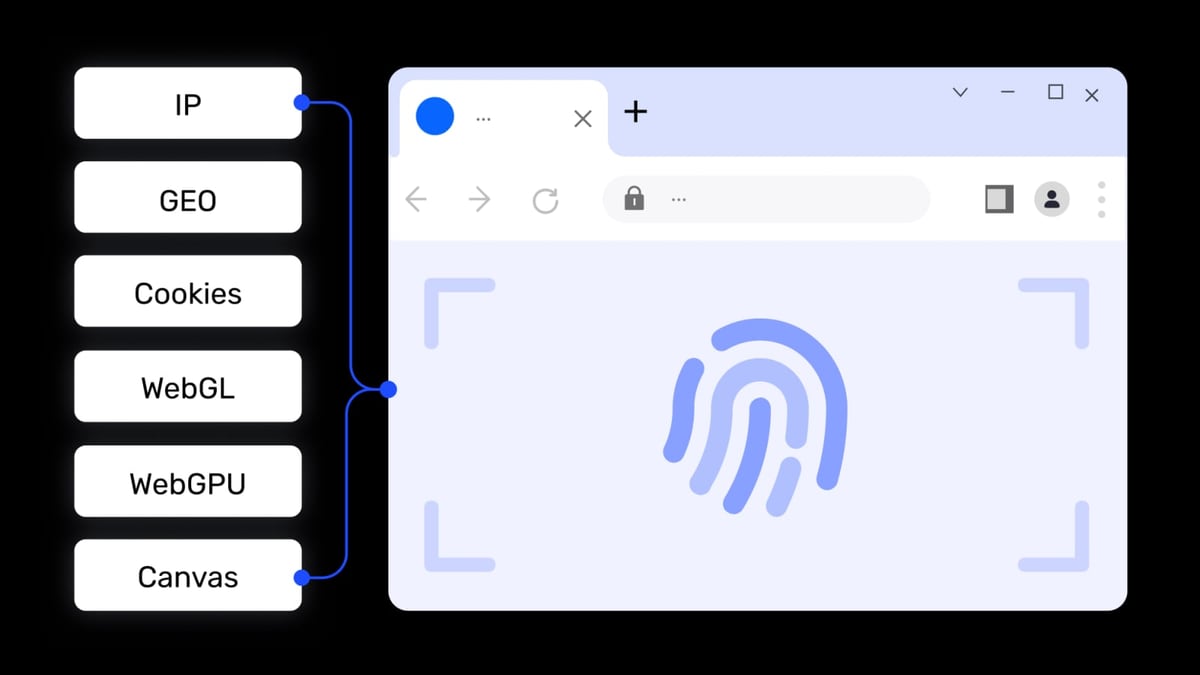
Manage Multiple Shopify Stores with AdsPower Fingerprint Browser product interface and feature overview.
Before diving into the setup, make sure you have:
- An AdsPower account – The free plan includes 2 browser environments and is enough to test the workflow. For more stores, you’ll need a paid plan (starting from a few dollars per month).
- A reliable proxy subscription – One proxy per store. Look for static residential or dedicated ISP proxies from providers that support HTTP/HTTPS, SOCKS5, or SSH. Avoid free public proxies; they are often blacklisted and cause more harm than good.
- Shopify store credentials – Email, password, and 2FA backup codes for each store.
- The AdsPower desktop client – Available for Windows, macOS, and Linux. The mobile version (Android/iOS) can complement your workflow if you also need to manage accounts on the go.
Step‑by‑Step Setup: Connecting AdsPower to Your Shopify Stores
Manage Multiple Shopify Stores with AdsPower Fingerprint Browser product interface and feature overview.
We’ll start from scratch and build one browser profile per Shopify store. Once you master the pattern, replicating it takes less than a minute.
1. Create an AdsPower Account and Download the Client
Visit the AdsPower official site and register. After email verification, download the client for your OS and install it. Log in with your credentials.
2. Add a New Browser Profile for Your First Shopify Store
Inside the AdsPower dashboard, click Profiles → New profile. You’ll see a form where you can define every aspect of the browser environment.
- Display name – Give the profile a recognizable name, for example “Shopify – Pet Supplies Store”.
- Group – Create a group called “Shopify Stores” (or use the existing grouping system) so you can keep all store profiles together. Grouping is invaluable when you have dozens of stores and need to apply bulk actions.
- Operating system – You can emulate Windows, macOS, Linux, or use your real OS. For Shopify, using your real OS is usually fine because platforms don’t aggressively fingerprint the OS for e‑commerce stores. However, if you want to match the geolocation of your proxy, you can set the OS accordingly.
- Browser kernel – Choose SunBrowser (Chrome) unless you have a specific reason to use FlowerBrowser (Firefox). SunBrowser gives the best compatibility with Shopify’s admin and third‑party apps.
3. Configure Fingerprint Parameters
This is where AdsPower earns its name. Under Fingerprint settings, you can either let the browser generate a random fingerprint based on the proxy IP, or manually fine‑tune each parameter. For Shopify, I recommend using the automatic “Match proxy” option, then manually reviewing a handful of key parameters:
- Canvas – Keep on “Multiple” or “Noise” mode. This prevents the exact same canvas hash from appearing across stores.
- WebGL – Same as Canvas; use noise injection.
- Audio – Enable audio fingerprint masking.
- WebRTC – Set to “Block” or “Replace”. This prevents your real local IP from leaking while still allowing WebRTC‑based communication if an app needs it.
- Fonts – Let AdsPower manage the font list; it will only expose fonts that match the locale of your proxy IP.
- Screen resolution – Match the resolution to your actual monitor for a natural feel, or randomize slightly if you want to avoid a common screen size across stores.
All these settings together create a truly unique digital fingerprint that passes browserleaks.com checks (as demonstrated in a Shopify Community discussion on anti‑detection tools).
4. Assign a Dedicated Proxy
Click the Proxy tab and select your proxy type (HTTP, HTTPS, SOCKS5, or SSH). Enter the IP, port, username, and password. Test the connection right from the interface to make sure the proxy is alive and the geographic location matches your store’s target market.
Binding a dedicated IP to each store is non‑negotiable. Shopify itself doesn’t block shared IPs, but payment providers like Stripe, PayPal, or local gateways absolutely notice when an account suddenly logs in from 5 different countries in a week. A static proxy for each store paints a consistent picture.
If you need step‑by‑step proxy setup instructions for specific providers, our guide on how to use AdsPower with Proxyrack covers the same principles that apply to any proxy service.
5. Launch the Profile and Log In to Shopify
Save the profile and click Open. AdsPower will spin up a fresh browser window with the fingerprint and proxy you defined. Navigate to your Shopify admin login page and sign in normally. Complete any 2FA challenges. Bookmark the admin URL inside the profile for quick access later. Do ordinary store tasks—check orders, update products—and then close the window. Everything (cookies, history, and local data) is encrypted and stored inside the profile.
6. Repeat for Each Additional Store
Go back to Profiles → New profile and repeat steps 2–5 for every Shopify store you own. Use consistent naming and group assignments. With a handful of profiles, you can keep a mental map; with dozens, the group and tag features become essential.
Advanced Workflows to Save Time
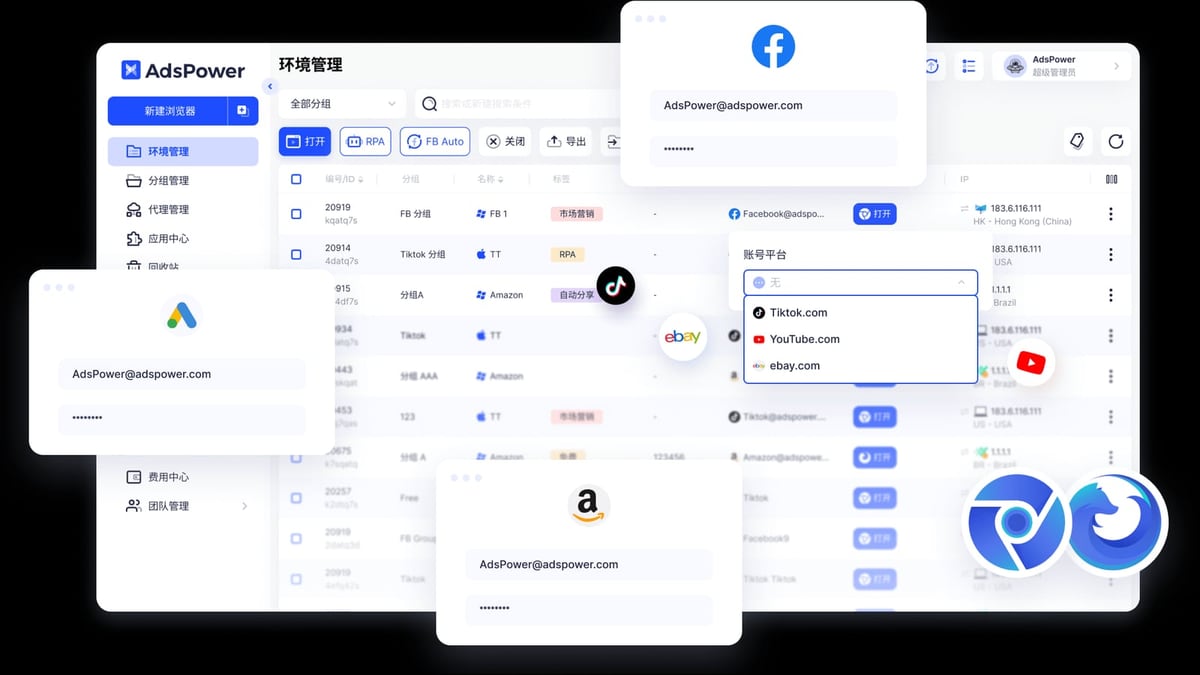
Manage Multiple Shopify Stores with AdsPower Fingerprint Browser product interface and feature overview.
Once the profiles are built, you’re not just switching between Chrome windows—you’re orchestrating a secure multi‑store operation. Here’s how to push efficiency further.
Batch Opening and Window Synchronization
Select multiple profiles in the dashboard and click Open. All the browser windows launch at once. If you need to perform the same action across several stores—say, changing the announcement bar for a holiday promotion—use Window Sync. You manually type in one window, and AdsPower replays your mouse movements, clicks, and keystrokes across all selected windows simultaneously. This is a lifesaver for bulk updates, not for automated scripts.
Automating Shopify Tasks with RPA
AdsPower’s built‑in RPA (Robotic Process Automation) feature lets you record and schedule repetitive tasks. For example, you can create an RPA robot that:
- Opens a specific store profile.
- Logs into Shopify (2FA can be handled with saved cookies).
- Navigates to Products → Inventory.
- Updates the stock quantity of a set of SKUs.
- Saves and exits.
You can schedule this robot to run daily at 2 a.m., or trigger it manually. This is perfect for inventory synchronization across multiple suppliers, daily sales reports, or bulk price changes. Because the RPA runs inside the isolated profile, each session maintains its own fingerprint and proxy—there’s no risk of cross‑store contamination. For developers, the Local API also supports Selenium, Puppeteer, and Playwright, allowing custom scripts that leverage AdsPower’s fingerprint infrastructure.
Team Collaboration and Permission Control
When you have VAs managing certain stores, you don’t want them to see passwords or accidentally enter the wrong account. AdsPower lets you add team members and assign them specific profiles. You can define roles:
- Administrator – Full control over all profiles and settings.
- Manager – Can open, edit, and manage assigned profiles but not change proxy or fingerprint settings.
- Member – Can only open assigned profiles. They don’t see the underlying credentials; they just log in via a pre‑filled session.
The login log records the IP and location every time a profile is accessed, so you always know who opened which store and from where. If a team member leaves, you can instantly revoke their access without changing any Shopify passwords.
Real‑World Examples: How Sellers Use AdsPower with Shopify
Dropshipping portfolio owner – Alex runs 12 niche Shopify stores, each targeting a different European country. He uses AdsPower with 12 static residential proxies (one per country) and unique browser fingerprints. Window Sync helps him apply the same discount code to all stores in under a minute. Because every store appears to Shopify and payment gateways as a separate merchant on a separate device, none of his stores have ever been linked or suspended.
Brand manager – Sophia’s team handles 3 consumer brands for a corporate group. Each brand has its own Shopify Plus store. With AdsPower, Sophia gives her junior marketer access to only the “NatureCosmetics” store’s profile, while the finance team accesses only the reporting profile that pulls order data. Sensitive payment details stay hidden, and the isolated environments prevent accidental cross‑posting between brands.
Affiliate marketer running Shopify partner stores – Miguel operates multiple Shopify stores that function as landing pages for affiliate products. He uses AdsPower’s RPA to fetch daily conversion data from affiliate networks and update product descriptions automatically. The API integration lets his custom dashboard pull order statuses from all stores without logging into any of them directly.
AdsPower vs. Other Anti‑Detect Browsers for Shopify
If you’re evaluating alternatives like Multilogin or Genlogin, a few differentiators matter for Shopify users:
- Price – AdsPower’s free tier (2 profiles) and lower‑cost plans make it accessible for beginners, while Multilogin starts at a higher price point.
- RPA and automation – AdsPower’s no‑code RPA and play‑and‑loop recorder are easier for non‑developers than scripting everything from scratch, which is common in other browsers.
- Fingerprint depth – All serious anti‑detect browsers mask Canvas, WebGL, Audio, and WebRTC, but AdsPower’s TLS fingerprint isolation (server‑side session splitting) adds an extra layer that can be critical when managing stores that rely on Stripe or PayPal.
- Team features – Role‑based access and the ability to share encrypted profiles without exposing passwords are available in both, but AdsPower’s interface tends to be simpler for e‑commerce teams.
For a detailed breakdown of how AdsPower stacks up against its top rivals, read our AdsPower vs Multilogin vs Genlogin comparison.
Related reading
- AdsPower vs MuLogin vs Indigo: Anti-Detect Browser Comparison 2026 - Compare AdsPower, MuLogin, and Indigo anti-detect browsers on fingerprinting, automation, pricing, and team features to choose the best tool for multi-account management.
- RoxyBrowser Review 2026: Features, Pricing & Honest Verdict - Evidence-based RoxyBrowser review covering features, pricing, pros and cons, ideal use cases, and user feedback. Find out if this antidetect browser fits your multi-account needs.
- Multilogin Review 2026: Features, Pricing & Honest Verdict - Read our in-depth Multilogin review covering cloud phones, anti-detect browser profiles, proxies, automation, pricing, and real-world tests. Honest verdict for teams and individuals.
Frequently Asked Questions
Is it allowed to manage multiple Shopify stores from the same computer?
Shopify’s terms of service do not forbid owning multiple stores. The risk comes from third‑party payment processors and advertising platforms that consider shared fingerprints as suspicious. Using an anti‑detect browser like AdsPower mitigates that risk rather than violating any rule.
How many Shopify stores can I run with AdsPower?
There’s no technical limit on the number of profiles. The free plan gives you 2 environments; paid plans scale from a few dozen to thousands. The practical limit is your proxy budget and how many stores you can actually manage.
Can I use AdsPower without a proxy?
Technically yes, but it’s strongly discouraged. Without a separate IP per store, your traffic still originates from the same public IP, making fingerprint isolation far less effective. A dedicated proxy completes the isolation.
Does AdsPower work on Mac and Linux?
Yes. The desktop client supports Windows, macOS, and Linux. Mobile versions for Android and iOS are also available.
Will Shopify detect that I’m using an anti‑detect browser?
AdsPower creates a real‑world browser environment with no detectable markers that it’s a modified browser. It uses unmodified Chromium or Firefox engines; it only alters the fingerprint information that’s sent to websites, not the browser’s behavior. When configured correctly, your store’s admin panel behaves exactly like a standard Chrome window.
Conclusion
Managing multiple Shopify stores doesn’t have to be a high‑wire act of isolated devices, multiple laptops, or risky virtual machines. AdsPower fingerprint browser lets you run every store in its own secure bubble, with dedicated fingerprints, proxies, and automated workflows, all from a single computer. The setup is straightforward, and the time saved through batch operations and RPA pays for the subscription many times over.
Whether you’re scaling a dropshipping portfolio, operating distinct brands, or testing new markets, the AdsPower–Shopify combination gives you the freedom to grow without the fear of bans. For more tool comparisons and privacy‑first workflow guides, explore the benchmarks and reviews at AdsPower.
Start with the free 2‑profile plan on AdsPower’s website and set up your first isolated Shopify store today.