
How to Use AdsPower with Textverified: Full Workflow
Take a Quick Look
Learn how to pair AdsPower anti-detect browser with Textverified phone numbers for ban-resistant account creation, verification, and multi-account management.
🔥 Limited-Time Offer! Save extra 10% off on your first monthly plan with code: Anitdetect10
Sign upHow to Use AdsPower with Textverified: A Complete Workflow Guide
Managing multiple online accounts without triggering platform bans is a two-part problem. You need a browser environment that looks like a real, unique device, and you need a phone number that platforms will accept for verification. AdsPower solves the first problem by creating isolated browser profiles with distinct digital fingerprints. Textverified solves the second by supplying temporary, non-VoIP US numbers that can receive SMS and voice codes.
Used together, they form a practical stack for creating and operating accounts on Google, Ticketmaster, Tinder, Cash App, social platforms, and e-commerce sites without exposing your personal phone number or linking accounts through shared browser fingerprints.
This guide walks through why the combination works, how to set it up step by step, and how to avoid the most common verification failures.
Why AdsPower and Textverified Work Well Together

Textverified product interface.
Platforms detect multi-account activity through two main signals: browser fingerprints and phone numbers.
AdsPower isolates each account in its own browser profile. Every profile gets a unique Canvas hash, WebGL renderer, user agent, timezone, language, and other parameters that make it appear as a separate physical device. When you open ten profiles, platforms see ten different machines, not one computer with ten tabs.
Textverified handles the second signal. Personal phone numbers are a liability in multi-account workflows: reusing one number across accounts creates an instant link, and many platforms now reject VoIP numbers outright. Textverified provides private, non-VoIP US numbers that are not shared across users, so each account gets a clean verification path.
The combined workflow looks like this:
- Create a fresh AdsPower profile with a unique fingerprint.
- Assign a proxy so the profile's IP matches the target region.
- Open the profile and begin account registration.
- When the platform asks for a phone number, rent a Textverified number.
- Enter the number, receive the code in the Textverified dashboard or Chrome extension, and complete verification.
The result is an account that appears to belong to a real person on a real device with a real phone number, while your actual identity and personal number stay private.
Step 1: Create an AdsPower Profile for the Target Platform
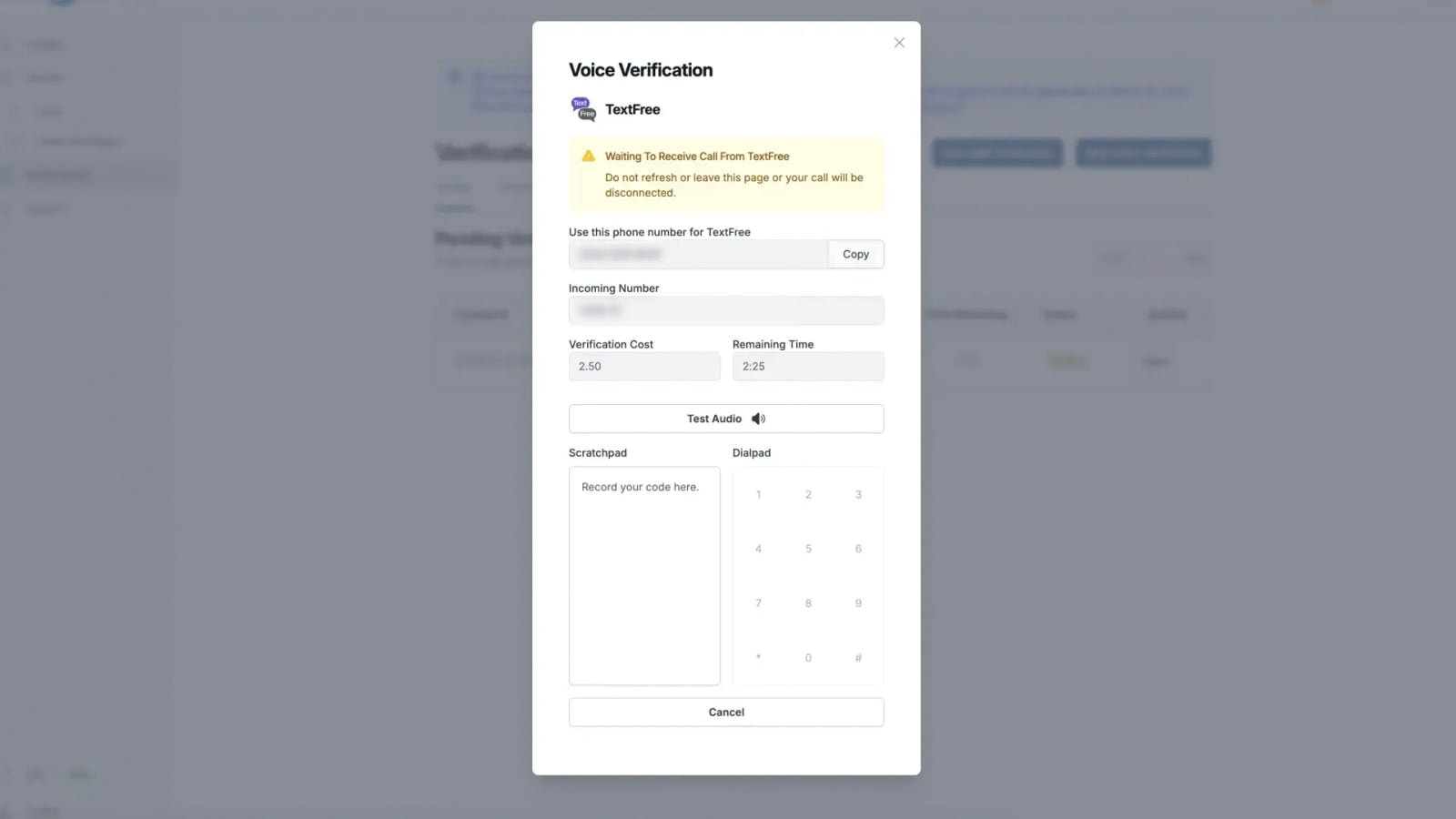
Textverified product interface.
Start by opening AdsPower and clicking New Profile. You can create profiles individually or use the batch creation feature when you need many accounts at once.
Key settings to configure:
- Profile name: Use a naming convention that helps you track the account, such as
Gmail-Account-01orTinder-US-04. - Operating system and user agent: Match these to the most common configuration for your target platform's user base. For US-focused accounts, a Windows or macOS profile with a recent Chrome version is a safe default.
- Fingerprint settings: AdsPower generates a random fingerprint by default. You can also customize Canvas, WebGL, fonts, and other parameters if you need finer control.
- Proxy: This is critical. Assign a residential or mobile proxy that matches the country of the Textverified number you plan to use. A US number paired with a US IP looks natural; a US number paired with an IP from another country raises red flags. If you need help with proxy setup, see this guide on pairing AdsPower with IPBurger proxy services.
Once the profile is configured, save it and launch the browser environment.
Step 2: Rent a Textverified Number Before You Need It
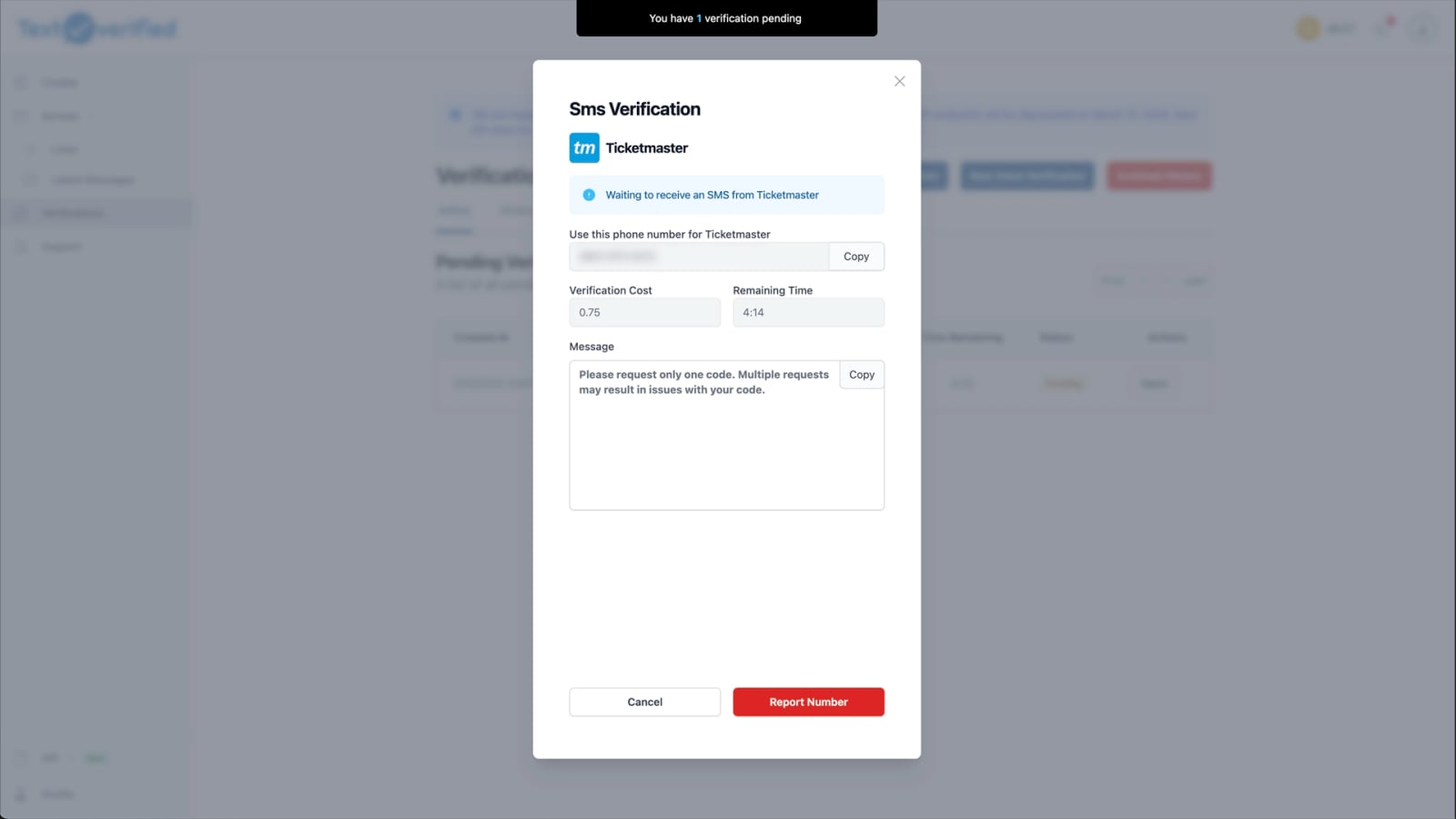
Textverified product interface.
Timing matters. Textverified numbers are rented for a specific duration, and verification codes usually arrive within seconds. Rent the number right before the platform asks for it, not hours in advance.
Here is the process:
- Log in to your Textverified account.
- Select the service you are verifying for, such as Google, Ticketmaster, or Cash App.
- Choose SMS verification or voice verification. Voice is useful when a platform does not send SMS codes reliably.
- Confirm the rental. One-time verifications start at $0.25, and longer rentals are available daily, monthly, or yearly if you need to keep the number for future login challenges or password resets.
- Copy the number from the dashboard.
Textverified also offers a Chrome extension that displays available numbers and incoming codes directly in the browser. If you are running many AdsPower profiles, the extension can save significant time by eliminating the need to switch back to the dashboard for every code.
Step 3: Complete Verification Inside the AdsPower Profile
With the profile open and the Textverified number ready, proceed through the platform's registration flow:
- Enter the rented number when prompted.
- Return to the Textverified dashboard or extension and wait for the SMS or voice code.
- Enter the code in the AdsPower profile.
- Complete the remaining registration steps, such as setting a recovery email or accepting terms.
If the code does not arrive within a few minutes, Textverified's no-charge policy means you are not billed for failed verifications. You can request a different number and try again.
Practical Example: Creating a Google Account
Google is one of the most common verification targets, and it is also one of the strictest. Here is a complete example workflow:
- In AdsPower, create a new profile named
Gmail-US-01with a US-based residential proxy and a fresh fingerprint. - Launch the profile and navigate to the Google account creation page.
- Fill in the basic details, then stop at the phone verification step.
- In Textverified, select Google as the service and rent a US SMS number.
- Enter the number in the Google form and click Send code.
- Watch the Textverified dashboard. The code typically appears within 10 to 30 seconds.
- Enter the code in Google and finish creating the account.
- Keep the Textverified number active if you anticipate Google may request re-verification during the first few days of account use.
This same pattern applies to Ticketmaster, Tinder, Cash App, Instagram, and most other platforms that require phone verification. The only variable is which service you select in Textverified and which proxy location you assign in AdsPower.
Practical Example: Bulk Account Creation with Automation
For teams that need to create accounts at scale, the manual workflow above becomes a bottleneck. AdsPower and Textverified both offer automation options that can be combined.
AdsPower provides RPA tools and a Local API that integrates with Selenium and Puppeteer. You can script the entire registration flow: open a profile, fill the form, pause at the verification step, and wait for input. Textverified offers its own API for renting numbers and retrieving codes programmatically.
A basic automated flow looks like this:
- A script requests a new Textverified number via the API.
- The script opens an AdsPower profile through the Local API.
- The script fills the registration form and submits the phone number.
- The script polls the Textverified API for the incoming code.
- The script enters the code and completes registration.
- The script saves the account credentials and closes the profile.
This approach requires some development effort, but it removes the manual overhead from high-volume operations. If you are new to browser automation, this overview of web automation tools and use cases is a useful starting point.
Common Problems and How to Solve Them
The platform rejects the Textverified number
This can happen when a number has been used too many times or when the platform has flagged a specific number range. Request a replacement number in Textverified and try again. If the problem persists, switch from SMS to voice verification, which sometimes bypasses SMS-based filtering.
The code never arrives
Check that the AdsPower profile's proxy is still active and that the IP location matches the number's country. A mismatch between IP and phone country is one of the most common reasons platforms silently drop verification codes. Textverified does not charge for codes that never arrive, so you can safely retry.
The account gets flagged shortly after creation
Fresh accounts are fragile. After verification, keep the account inside its AdsPower profile and avoid aggressive actions like mass following, bulk messaging, or rapid purchases. Use the account normally for a few days before scaling activity. Keeping the Textverified number rented for the first week can also help if the platform requests re-verification.
Instagram or another platform does not accept the number
Some platforms have stricter number filtering than others. Community reports, such as this BlackHatWorld discussion on Instagram SMS incompatibilities, show that a service that works for Gmail may occasionally fail for Instagram. The solution is usually to request a different number or switch to voice verification rather than abandoning the workflow entirely.
AdsPower with Textverified vs. Alternative Setups
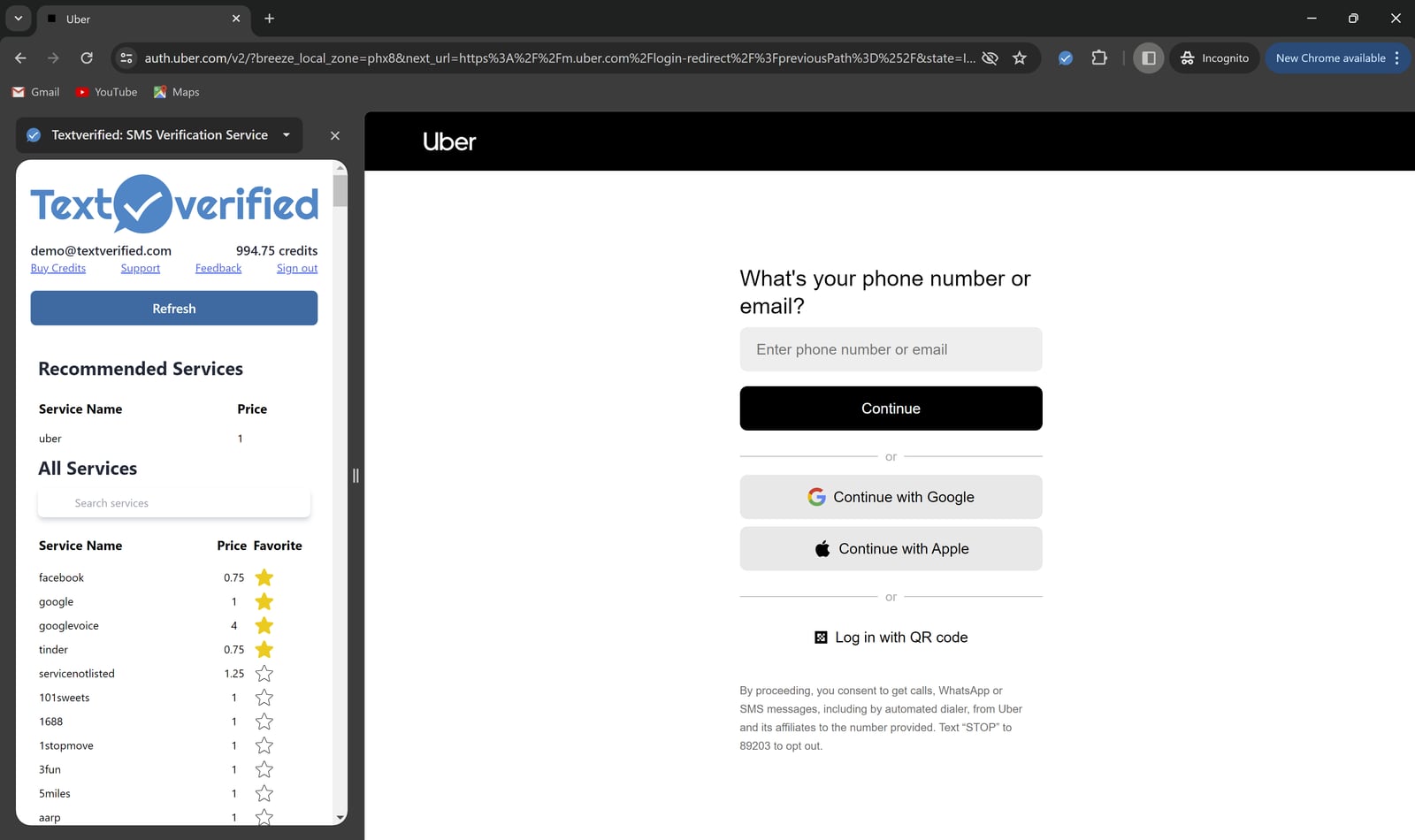
Textverified product interface.
You might wonder whether you need both tools or whether one alone is sufficient.
AdsPower alone handles fingerprint isolation, but it cannot verify phone numbers. You would need to supply your own numbers, which means either using personal numbers or buying SIM cards, both of which have scaling limits and privacy drawbacks.
Textverified alone gives you verification numbers, but without isolated browser profiles, every account you create shares the same fingerprint. Platforms will link those accounts quickly, and bans will cascade.
Alternative anti-detect browsers can substitute for AdsPower, and alternative SMS services can substitute for Textverified. The core principle remains the same: isolate the fingerprint and isolate the phone number. If you are evaluating browser options, this comparison of AdsPower, Multilogin, and Genlogin breaks down the key differences in fingerprint isolation, automation, and pricing.
Related reading
- AdsPower vs RoxyBrowser vs Dolphin Anty: Which Wins in 2026? - Compare AdsPower, RoxyBrowser, and Dolphin Anty across fingerprint isolation, automation, pricing, and team features to choose the right antidetect browser.
Sources and further reading
- How To Setup HTTP&Socks5 IP in AdsPower Browser - How To Setup HTTP&Socks5 IP in AdsPower Browser🔔 Creative IT Section (Social Network)♦●► Teams Link Creative IT Section (Manager)-Join my chat in Microsoft...
- The Infrastructure - Step-by-step deliverability setup: adjacent domains, SPF/DKIM/DMARC, inbox creation, and warming so emails reach people, not their spam folders.
Frequently Asked Questions
Do I need a proxy when using AdsPower with Textverified?
Yes. A proxy is strongly recommended. The proxy's location should match the country of the Textverified number. A US number entered from a non-US IP is a common trigger for verification failures and account flags.
Can I use one Textverified number for multiple AdsPower profiles?
No. Reusing a phone number across accounts creates a direct link between them. Rent a separate number for each account you create. Textverified's private number pool is designed for this purpose.
How long should I keep the Textverified number after verification?
For most accounts, a one-time verification is sufficient at creation. However, if you expect the platform to challenge the account later, such as Google's occasional re-verification prompts, a longer rental gives you a safety net. Monthly and yearly rentals are available if you need persistent access to the number.
Does Textverified work with all platforms?
Textverified supports a wide range of services, including Google, Ticketmaster, Tinder, Cash App, and social media platforms. No SMS service guarantees 100% success on every platform, but Textverified's no-charge policy for undelivered codes means failed attempts do not cost you money.
Can I automate the AdsPower and Textverified workflow?
Yes. AdsPower offers RPA tools and a Local API for Selenium and Puppeteer integration. Textverified provides an API for renting numbers and retrieving codes. Combined, they enable scripted account creation at scale.
Conclusion
AdsPower and Textverified address two halves of the same challenge. AdsPower makes each account look like it lives on a separate, real device. Textverified makes each account verifiable without exposing your personal number or reusing numbers across accounts. Together, they create a workflow that is more resistant to bans, easier to scale, and far more private than using either tool alone.
The setup is straightforward: create an isolated AdsPower profile with a geo-matched proxy, rent a Textverified number at the moment of verification, enter the code, and keep the number active if the account may need future challenges. For high-volume teams, both platforms offer APIs that turn this manual process into an automated pipeline.
Start with a single test account on a low-risk platform, confirm the workflow end to end, then scale up with batch profile creation and API-driven verification.