
How to Use AdsPower with Ecwid: Multi-Store Setup Guide
Take a Quick Look
Learn how to use AdsPower with Ecwid: create isolated browser profiles, run multiple storefronts safely, and automate routine e-commerce tasks.
How to Use AdsPower with Ecwid: Multi-Store Setup Guide
Running one online store is manageable. Running several — for different brands, regions, or client accounts — is where things get complicated. Ecwid gives you a fast, no-code way to launch storefronts. AdsPower gives each of those storefronts its own isolated browser identity. Together, they let you operate multiple Ecwid stores from a single computer without the accounts looking connected.
This guide explains how the two tools fit together, walks through the setup, and shows practical workflows you can copy.
Why combine AdsPower and Ecwid?
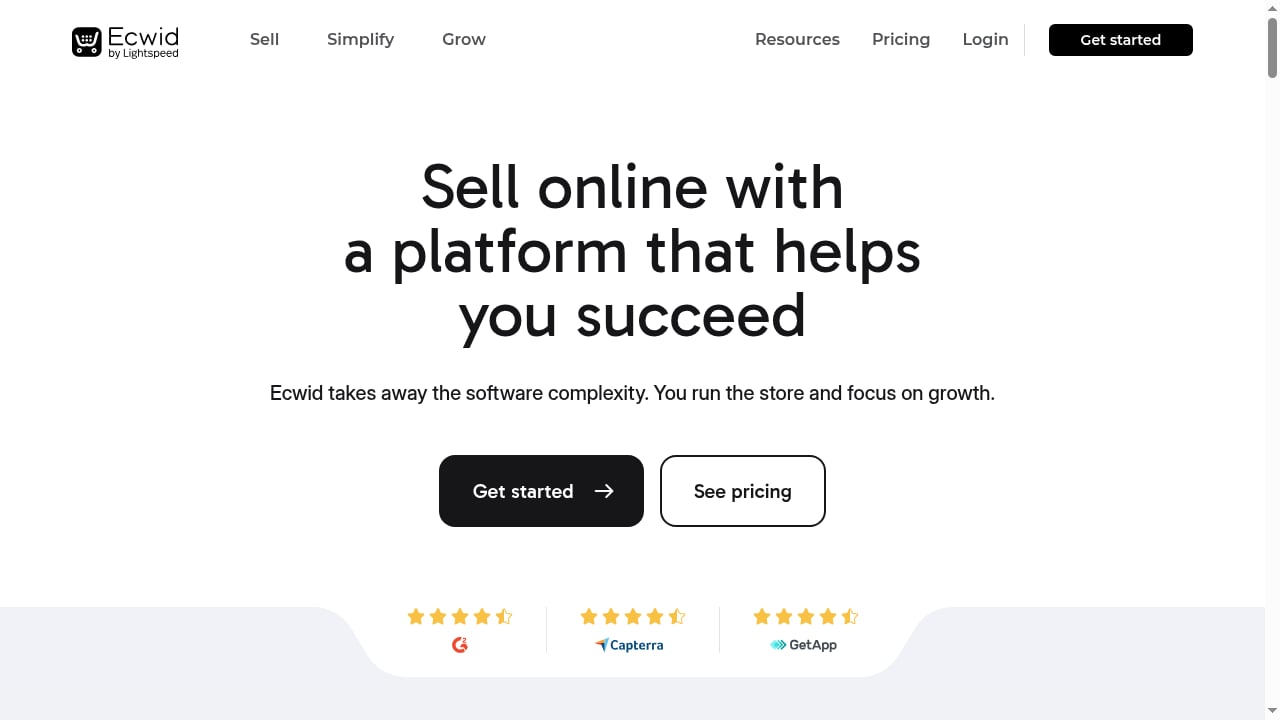
First viewport screenshot of Ecwid: #1 Fast and Easy E-commerce Shopping Cart Solution - Try Ecwid Today!.
Ecwid is a shopping cart and storefront platform that works inside an existing website or as a standalone store. It requires no technical skill to launch and charges no transaction fees, which makes it attractive for sellers who want to test products or niches quickly.
AdsPower is an anti-detect browser built for multi-accounting. It creates separate browser profiles, each with its own fingerprint — Canvas, WebGL, user agent, timezone, screen resolution, and more — so platforms see independent devices rather than one machine logging into many accounts.
Put them together and you get a practical setup for:
- Agency work. Manage storefronts for several clients without their admin sessions bleeding into each other.
- Multi-brand selling. Operate separate Ecwid stores for different product lines or markets.
- Regional testing. Launch stores targeting different countries, each with a matching timezone, language, and proxy location.
- Safer scaling. Reduce the risk of platform flags that come from repeated logins on the same browser environment.
How the two tools work together
First viewport screenshot of Explore case studies about businesses built on Ecwid.
The relationship is straightforward: Ecwid is the storefront layer, AdsPower is the access layer.
| Layer | Tool | What it handles |
|---|---|---|
| Storefront | Ecwid | Product catalog, cart, checkout, order management |
| Access | AdsPower | Browser identity, fingerprint, proxy, session isolation |
| Automation | AdsPower | Scheduled tasks, batch actions, AI Agent workflows |
Each Ecwid store gets its own AdsPower profile. That profile stores the login session, cookies, and fingerprint for that store only. When you open a different profile, you get a clean environment tied to a different store.
Step-by-step setup
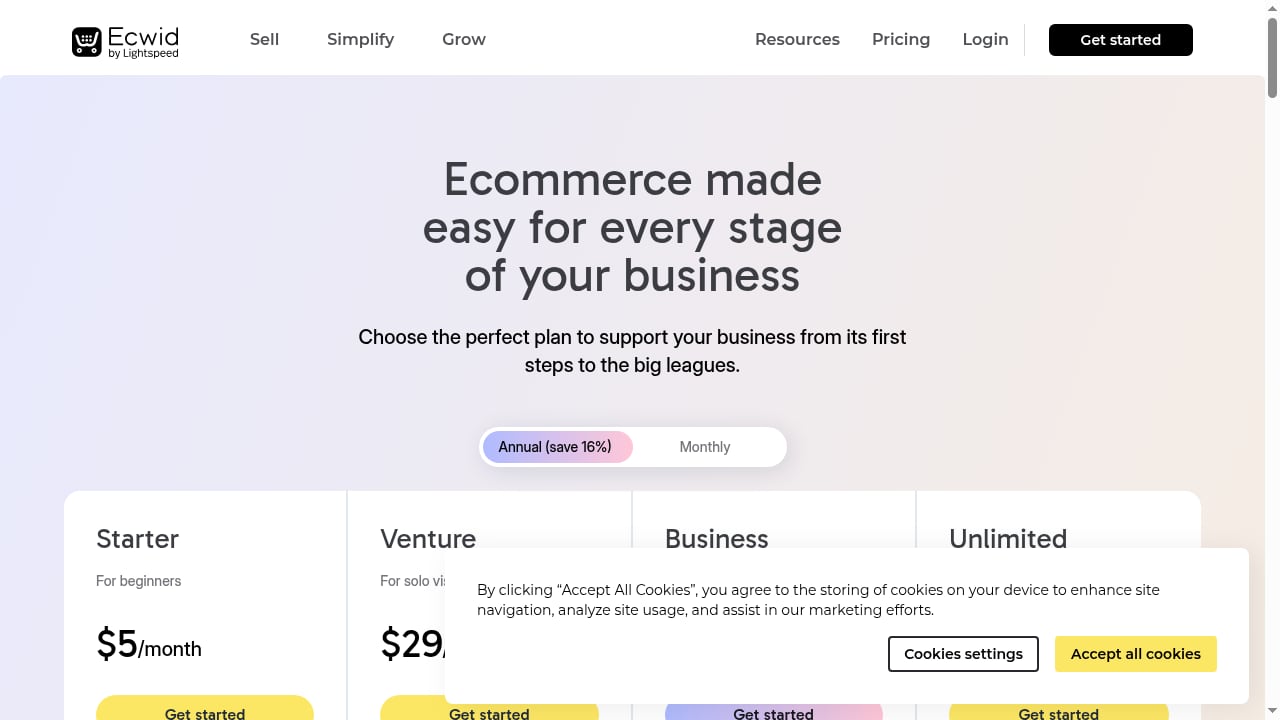
First viewport screenshot of Ecwid Pricing - Choose the right Ecwid plan for your business!.
Step 1: Install AdsPower and create your first profile
Download AdsPower from the official site and sign up. The free forever plan includes two profiles, which is enough to test the workflow before committing.
Inside the dashboard, click Create Profile. Give it a name that maps to the store — for example, Ecwid - Home Decor US or Ecwid - Client A. Set the browser type (SunBrowser or FlowerBrowser), then configure the fingerprint.
Step 2: Match the fingerprint to the store's market
Fingerprint consistency matters more than fingerprint randomness. If your store targets US customers, set the timezone to a US zone, the language to English, and the resolution to something common like 1920x1080. Mismatched fingerprints — a German timezone with a US proxy, for instance — are a common cause of verification prompts.
Step 3: Attach a proxy
Add a proxy in the profile settings. AdsPower supports HTTP, HTTPS, SOCKS5, and mobile proxies, and you can buy proxies directly inside the platform or bring your own provider. Test the connection before saving.
For Ecwid storefronts, residential or ISP proxies usually work well because they look like ordinary shopper traffic. If you manage several stores in the same country, keep each store on a stable, dedicated IP rather than rotating addresses.
Step 4: Log into Ecwid inside the profile
Open the profile, navigate to your Ecwid admin, and sign in. Complete any two-factor authentication. From this point on, the session lives inside that profile.
Repeat the process for each additional store: new profile, new proxy, new login. Never log two Ecwid accounts into the same profile.
Step 5: Organize profiles into groups
AdsPower lets you group profiles by project. Create groups like Client Stores, Test Brands, or EU Region so you can find and launch the right store quickly. Batch operations let you start, stop, or edit many profiles at once.
Step 6: Add automation for repetitive work
Once profiles are stable, use AdsPower's automation tools to handle routine tasks — checking order pages, updating product listings, or pulling reports across stores. The no-code RPA builder and the AI Agent with scheduled tasks are the two main options. Start with one simple task on one profile before rolling it out across a group.
Practical examples
First viewport screenshot of Ecommerce Solutions for Artisans - Ecwid Ecommerce.
Example 1: A dropshipping seller testing three niches
A seller wants to test home goods, pet accessories, and fitness gear as separate Ecwid stores. Each store gets its own AdsPower profile with a distinct fingerprint and a residential proxy in the target country. The seller can compare performance without any store's admin session interfering with another's.
Example 2: An agency managing five client storefronts
An agency handles Ecwid stores for five small businesses. Profiles are grouped under Client Stores, each with the client's name. Team members get access to specific profiles rather than shared credentials, and profile data is encrypted. When a client leaves, the agency simply removes that profile.
Example 3: A regional seller running US and EU storefronts
The US store uses a US proxy, US timezone, and English language settings. The EU store uses a German proxy, CET timezone, and German language settings. Both stores run from the same laptop, but the browser environments never overlap.
Common problems this setup solves
- Session collisions. Logging in and out of multiple Ecwid accounts in one browser leaves cookies and cached data that can link accounts. Isolated profiles prevent this.
- Verification loops. Repeated logins from the same fingerprint often trigger extra checks. A consistent, unique fingerprint per store reduces that friction.
- Team access chaos. Sharing one login across a team creates audit and security problems. Profile-level access keeps things clean.
- Device sprawl. Instead of buying laptops or cloud servers for each store, you run everything from one machine.
Choosing the right configuration
If you run one or two stores, the free plan plus a single proxy per store is usually enough. You may not need automation at all.
If you run five to twenty stores, move to a paid AdsPower plan for more profiles and team seats, and set up profile groups. Add automation for order checks or listing updates.
If you run dozens of stores or manage client accounts, look at the Business or Enterprise tier. Batch profile management, profile syncing across computers, and the AI Agent become genuinely useful at that scale.
For a broader look at how AdsPower compares with other anti-detect browsers before you commit, see this AdsPower vs Dolphin Anty comparison and this AdsPower vs Linken Sphere vs Maskfog breakdown.
Related reading
- AdsPower vs Best Multiaccount Browser vs MoreLogin - AdsPower vs Octo Browser vs MoreLogin: compare fingerprint isolation, automation, cloud phones, team tools, and pricing to pick the right antidetect browser.
- AdsPower vs Linken Sphere vs MuLogin: 2026 Comparison - Compare AdsPower, Linken Sphere, and MuLogin anti-detect browsers on fingerprints, automation, team features, pricing, and best use cases in 2026.
Sources and further reading
- AdsPower Tutorial 2026 - Step By Step Guide For Beginners - Enjoy the videos and music you love, upload original content, and share it all with friends, family, and the world on YouTube.
- How to Use AdsPower? A Step-by-Step Guide! | SimplyNode - Discover key features for efficient multi-account management with AdsPower. Enhance your strategy and streamline your workflow. Read the article now!
- Guides to Use AdsPower Antidetect Browser - Learn how to use AdsPower undetectable browser to fix your need with those step-by-step guides, so that you can efficiently manage your tasks.
FAQ
Do I need a proxy to use AdsPower with Ecwid?
Technically you can run a profile without a proxy, but your real IP would be shared across every store you log into. For multi-store work, attach a separate proxy to each profile so each store appears to come from a different location.
Can I use the free AdsPower plan for Ecwid stores?
The free forever plan includes two profiles. That covers two storefronts. For more, you need a paid plan.
Is using AdsPower with Ecwid against Ecwid's terms?
AdsPower is a browser isolation tool. Whether a specific setup is allowed depends on Ecwid's own terms of service and on how you use the accounts. Review Ecwid's policies before running multiple stores.
How many Ecwid stores can I manage from one computer?
With AdsPower, the practical limit is your plan's profile count rather than your hardware. Teams have run hundreds of isolated profiles from a single machine.
Does AdsPower work with other e-commerce platforms?
Yes. The same profile-per-store approach applies to other carts and marketplaces. If you also do data collection, this guide on using AdsPower with Scrapy covers the automation side.
What happens if I need to move profiles to another computer?
AdsPower supports profile syncing across computers, so you can move a store's environment without rebuilding the fingerprint and session from scratch.
Conclusion
AdsPower and Ecwid solve different halves of the same problem. Ecwid handles the storefront — catalog, cart, checkout — with no technical overhead. AdsPower handles the access layer, giving each storefront its own browser identity so multiple stores can run side by side without interfering with each other.
The setup is not complicated: create a profile, match the fingerprint to the store's market, attach a proxy, log in, and group the profile for easy access. From there, automation can take over the repetitive parts.
Start with two profiles on the free plan, prove the workflow on a single store, then scale up as your store count grows.


