
How to Use AdsPower Fingerprint Browser with Facebook: Multi-Account Setup
Take a Quick Look
Learn how to use AdsPower fingerprint browser with Facebook to manage multiple accounts securely, avoid bans, and automate workflows. Step-by-step guide.
🔥 Limited-Time Offer! Save extra 10% off on your first monthly plan with code: Anitdetect10
Sign upHow to Use AdsPower Fingerprint Browser with Facebook: Multi-Account Setup
Running multiple Facebook accounts for advertising, affiliate marketing, or community management is a common need. But Facebook’s detection systems are aggressive—they flag accounts that share the same browser fingerprint, IP address, or cookie data. That’s where AdsPower fingerprint browser comes in. This guide walks you through exactly how to use AdsPower with Facebook, from initial setup to advanced automation, so you can manage dozens of accounts safely from one machine.
Why Use AdsPower for Facebook?
How to Use AdsPower Fingerprint Browser with Facebook: Multi-Account Setup product interface and feature overview.
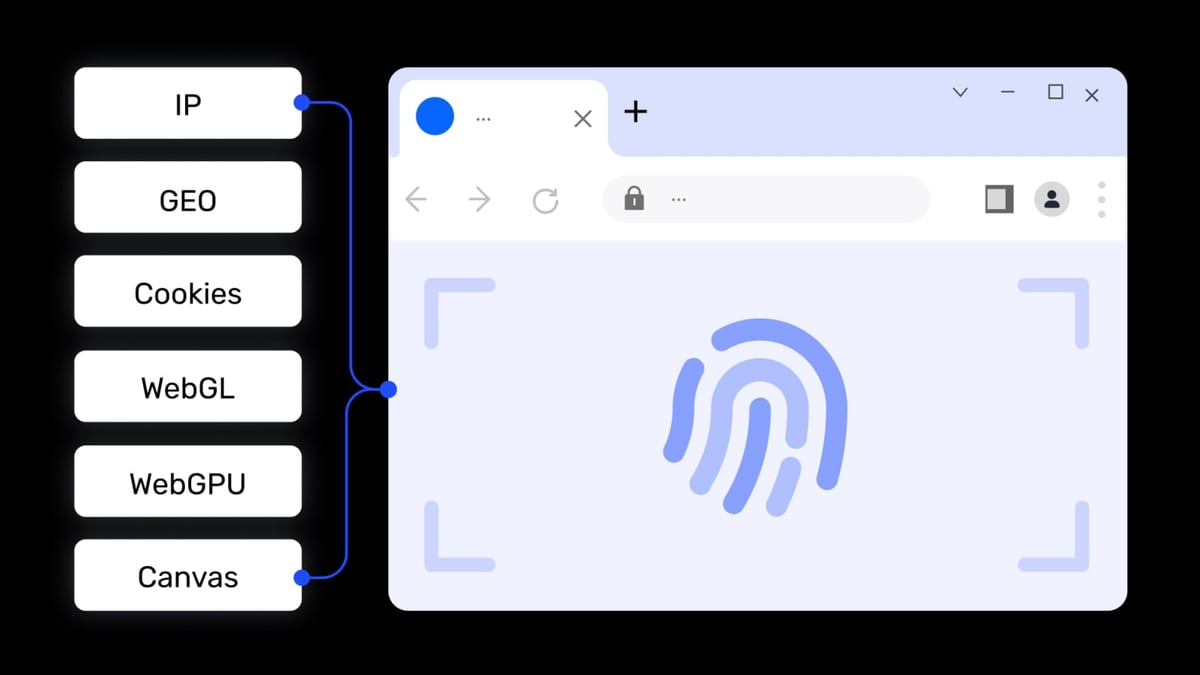
Facebook tracks users through browser fingerprints—unique combinations of Canvas, WebGL, Audio, WebRTC, and other parameters. When you log into multiple accounts from the same browser, Facebook sees the same fingerprint and may block all of them. AdsPower creates isolated browser environments, each with a distinct fingerprint, so each Facebook account appears to come from a different device. This solves three core problems:
- Prevents account association – Each environment has a unique fingerprint, so Facebook can’t link your accounts.
- Reduces ban risk – Isolated cookies, local storage, and cache mean one account’s actions never affect another.
- Saves hardware costs – No need for multiple computers or VPS instances; one device handles all accounts.
What You Need Before Starting
How to Use AdsPower Fingerprint Browser with Facebook: Multi-Account Setup product interface and feature overview.
- An AdsPower account (free tier gives you 2 browser environments; paid plans unlock more).
- Facebook accounts you want to manage (personal profiles, Business Manager accounts, or Pages).
- Proxies (recommended) – Each Facebook account should use a different IP address. AdsPower supports HTTP, HTTPS, SOCKS5, and SSH proxies.
- A stable internet connection.
Step-by-Step Setup: AdsPower + Facebook
How to Use AdsPower Fingerprint Browser with Facebook: Multi-Account Setup product interface and feature overview.
1. Create a New Browser Environment in AdsPower
Open AdsPower and click Create Browser or New Environment. You’ll see a form with fingerprint settings.
- Browser Name – Give it a label like “FB Ad Account 1” or “Client A Page”.
- Platform – You can choose “Facebook” from the preset list. This automatically optimizes fingerprint parameters for Facebook’s detection system.
- Kernel – Choose SunBrowser (Chrome-based) or FlowerBrowser (Firefox-based). Both work well with Facebook; SunBrowser is more common for ad tools.
2. Configure Fingerprint Settings
Under Fingerprint, AdsPower lets you customize over 20 parameters. For Facebook, the most critical ones are:
- Canvas – Randomize or set a fixed value.
- WebGL – Enable and randomize.
- Audio – Enable randomization.
- WebRTC – Set to “Disabled” or “Proxy” to prevent IP leaks.
- Time Zone – Match the time zone of your proxy location.
- Language & User Agent – Set these to match a real user profile (e.g., en-US, Windows 10).
You can leave most settings on “Random” for simplicity. AdsPower’s presets are already tuned for Facebook.
3. Add a Proxy (Highly Recommended)
Facebook tracks IP addresses. If you log into multiple accounts from the same IP, they’ll be linked. Use a different proxy for each environment.
- In the environment creation form, scroll to Proxy Settings.
- Select your proxy type (HTTP, SOCKS5, etc.).
- Enter the proxy IP, port, username, and password.
- Click Check Proxy to verify it works.
Pro tip: Use residential or mobile proxies for Facebook—datacenter proxies are often flagged.
4. Launch the Environment and Log into Facebook
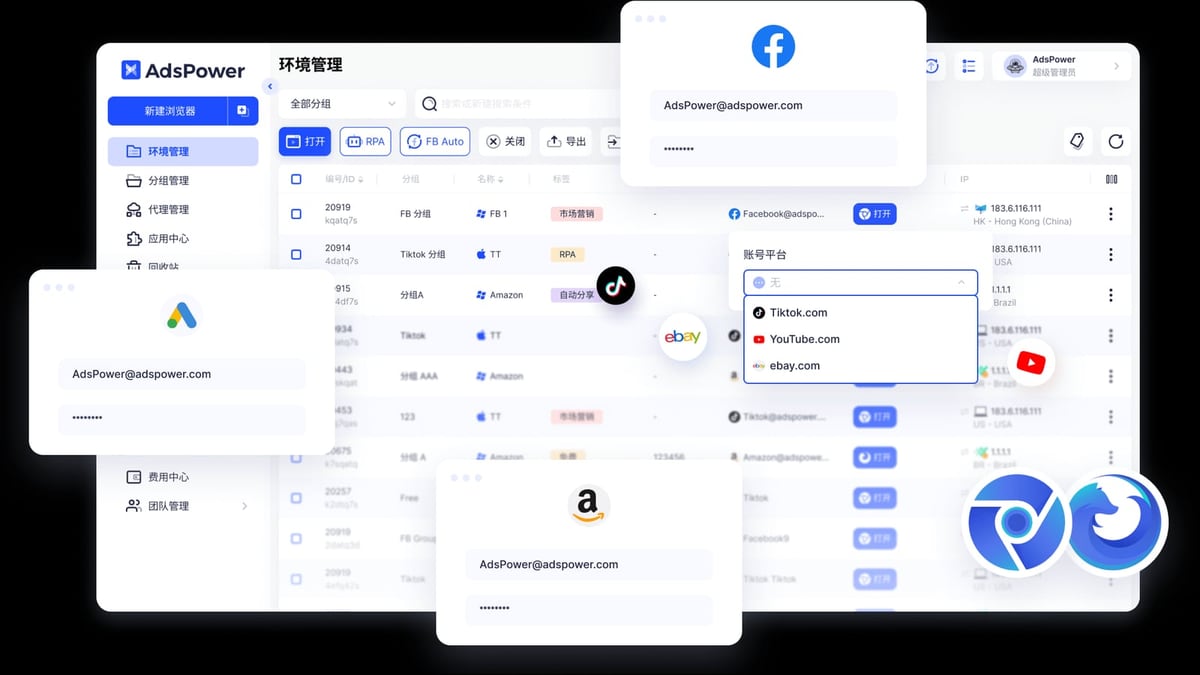
Click Open on your new environment. A separate browser window opens with the fingerprint and proxy you configured. Now simply go to facebook.com and log in with your account credentials.
- AdsPower stores cookies and session data inside that environment, so next time you open it, you’re already logged in.
- Repeat steps 1–4 for each Facebook account you want to manage.
5. Organize Your Accounts with Groups and Tags
As your account count grows, use AdsPower’s Group and Tag features:
- Create groups like “Facebook Ads”, “Client Pages”, “Testing Accounts”.
- Assign each environment to a group for quick filtering.
- Use tags for status (e.g., “Active”, “Banned”, “Needs Review”).
This keeps your workspace clean and helps you find accounts fast.
Practical Example: Running Facebook Ad Campaigns with Multiple Accounts
How to Use AdsPower Fingerprint Browser with Facebook: Multi-Account Setup product interface and feature overview.
Imagine you run a dropshipping store and need 5 Facebook ad accounts to test different audiences. Here’s how AdsPower helps:
- Create 5 environments – Each with a unique fingerprint and a dedicated residential proxy (different country for each, if possible).
- Log into each account – Open environment 1, log into Facebook Ads Manager, set up your campaign. Close. Open environment 2, repeat.
- Use window synchronization – If you need to perform the same action across all accounts (e.g., update ad copy), enable Window Sync in AdsPower. Actions in one window are mirrored to others.
- Monitor performance – Switch between environments quickly without logging out. AdsPower keeps each session alive.
This workflow keeps your accounts isolated, reduces the chance of a “bulk ban”, and saves hours of switching browsers.
Advanced: Automate Facebook Tasks with AdsPower RPA
AdsPower includes a built-in RPA (Robotic Process Automation) tool that can automate repetitive Facebook tasks like:
- Posting content to multiple Pages.
- Sending friend requests or messages (with caution—Facebook limits these).
- Extracting data from Facebook groups or marketplaces.
How to Set Up a Simple RPA Task
- Open the environment you want to automate.
- Click RPA in the left sidebar.
- Choose a pre-built template (e.g., “Facebook Login”) or create a custom workflow using drag-and-drop actions.
- Set triggers (e.g., run every day at 9 AM) and conditions.
- Test the automation on a single environment before scaling.
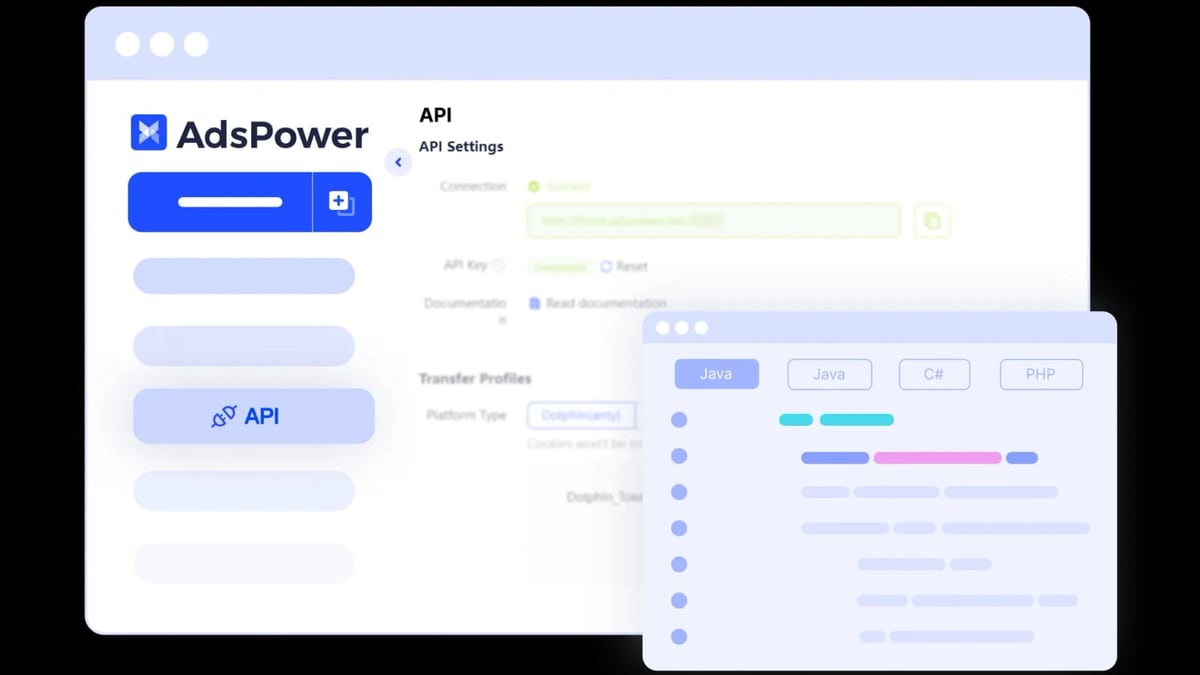
For developers, AdsPower also offers a Local API compatible with Selenium, Puppeteer, and Playwright. You can write scripts to control environments programmatically.
Common Problems and How AdsPower Solves Them
| Problem | Solution with AdsPower |
|---|---|
| Facebook blocks accounts after login | Use a clean proxy and randomized fingerprint. Avoid reusing the same fingerprint across accounts. |
| Accounts get flagged as suspicious | Set realistic time zones and language settings. Don’t perform aggressive actions on new accounts. |
| Team members accidentally interfere with each other’s accounts | Use AdsPower’s role-based permissions. Assign environments to specific users and restrict editing. |
| Need to scale from 5 to 50 accounts | Upgrade your AdsPower plan. Use the bulk import feature to create environments from a CSV file. |
Related reading
- AdsPower vs RoxyBrowser vs BitBrowser: 2026 Anti-Detect Browser Comparison - Compare AdsPower, RoxyBrowser, and BitBrowser anti-detect browsers. Features, automation, pricing, and which one fits your multi-account workflow.
- ScrapingAnt Review 2026: Features, Pricing & Benchmarks - Honest ScrapingAnt review: features, pricing, benchmarks, and ideal use cases. See how it compares to other web scraping APIs in 2026.
- Top 10 Online Marketplace Products 2026: Data-Backed Picks - Discover the 10 best-selling online marketplace products for 2026, backed by search trends and market data. Find profitable items to sell on eBay and beyond.
Frequently Asked Questions
Can I use AdsPower for free with Facebook?
Yes, the free plan includes 2 browser environments. You can manage two Facebook accounts without paying. For more accounts, you’ll need a paid plan.
Does AdsPower work with Facebook Business Manager?
Absolutely. Each Business Manager account should be in its own environment with a unique proxy. This prevents Facebook from linking your business portfolios.
What proxy type is best for Facebook?
Residential or mobile proxies are safest. Avoid free proxies—they’re often blacklisted. AdsPower supports HTTP, HTTPS, SOCKS5, and SSH, so choose based on your provider.
Can I transfer my Facebook accounts to another computer?
Yes. Export the environment data from AdsPower on your old machine, then import it on the new one. Your fingerprints and cookies remain intact.
Is AdsPower legal for Facebook?
Using AdsPower itself is legal. However, Facebook’s Terms of Service prohibit creating multiple accounts without permission. Use AdsPower responsibly—for legitimate business needs like managing multiple Pages or ad accounts under a Business Manager.
Conclusion
Using AdsPower fingerprint browser with Facebook gives you a secure, scalable way to manage multiple accounts without triggering Facebook’s detection algorithms. By isolating each account in its own browser environment with a unique fingerprint and proxy, you drastically reduce the risk of bans and streamline your workflow. Whether you’re a social media marketer, affiliate advertiser, or e-commerce seller, this combination saves time, money, and headaches.
Ready to compare AdsPower with other anti-detect browsers? Check out our detailed comparisons: AdsPower vs Dolphin Anty and AdsPower vs Hidemyacc. For more on automation, read How to Use AdsPower Fingerprint Browser with Scrapy.
Image alt text: AdsPower browser environment creation form showing fingerprint settings for Facebook Image caption: Configure fingerprint parameters in AdsPower to match a real user profile and avoid Facebook detection.