
Selenium Setup: Install WebDriver, Java, Python & IDE
Take a Quick Look
Complete Selenium setup guide: install Java or Python, WebDriver, Selenium Manager, and IDE. Includes Selenium Grid, Docker, and anti-detect browser tips.
🔥 Limited-Time Offer! Save extra 10% off on your first monthly plan with code: Anitdetect10
Sign upSelenium Setup: A Complete Guide to Installing WebDriver, Java, Python, and Your First Project
Getting Selenium running for the first time can feel like assembling furniture without instructions: you need the right language bindings, a browser, a driver, and an IDE that all agree with each other. This guide walks through the full Selenium setup process on Windows, macOS, and Linux, then shows how to verify everything with a working test. It also covers scaling with Selenium Grid, running in Docker, and what to do when your automation needs isolated browser profiles.
What Selenium Setup Actually Involves
Selenium Setup: Install WebDriver, Java, Python & IDE - What Selenium Setup Actually Involves.
Selenium is not a single executable you install and forget. It is a framework made of several moving parts:
- Language bindings — the library you import in Java, Python, C#, Ruby, or JavaScript.
- WebDriver — the API and protocol that controls browser behavior in a language-neutral way.
- Browser drivers — small executables (ChromeDriver, GeckoDriver, EdgeDriver) that translate WebDriver commands into actions inside a specific browser.
- A browser — Chrome, Firefox, Edge, or Safari.
- A build tool or IDE — Maven or Gradle for Java, pip and a virtual environment for Python, plus an editor such as IntelliJ IDEA, Eclipse, or VS Code.
Because each browser vendor maintains its own driver, setup steps differ slightly depending on which browser you target. The good news: modern Selenium versions include Selenium Manager, which detects and downloads the correct driver automatically in most cases, removing the most common source of setup errors.
Prerequisites Before You Install Anything
Selenium Setup: Install WebDriver, Java, Python & IDE - Prerequisites Before You Install Anything.
Check these items first so you do not debug two problems at once:
- A supported OS — Windows 10/11, recent macOS, or a mainstream Linux distribution.
- A current browser — Chrome, Firefox, or Edge, updated to the latest stable release.
- A language runtime — Java JDK 11 or newer, or Python 3.9 or newer.
- Administrator access — needed to set environment variables and install system packages.
- A stable network — Selenium Manager downloads drivers on first run.
Selenium Setup for Java
Selenium Setup: Install WebDriver, Java, Python & IDE - Selenium Setup for Java.
Java remains the most common Selenium stack in enterprise QA teams. The steps below assume you are starting from a clean machine.
Step 1: Install the Java JDK
Download a JDK build (Temurin, Oracle, or your vendor of choice) and run the installer. Then confirm it is on your PATH:
java -version
If the command is not recognized, set JAVA_HOME to your JDK folder and add %JAVA_HOME%\bin (Windows) or $JAVA_HOME/bin (macOS/Linux) to your PATH.
Step 2: Install an IDE
IntelliJ IDEA Community, Eclipse, and VS Code all work well. Pick one and install the Java extension pack if needed.
Step 3: Install Maven
Maven manages dependencies and builds. After installing, verify with:
mvn -version
Set MAVEN_HOME and add its bin folder to PATH if the command fails.
Step 4: Create a Maven project
In your IDE, create a new Maven project with a group ID such as com.example.selenium and an artifact ID such as selenium-automation. Then add the Selenium dependency to pom.xml:
<dependency>
  <groupId>org.seleniumhq.selenium</groupId>
  <artifactId>selenium-java</artifactId>
  <version>4.27.0</version>
</dependency>
If Maven reports a failed artifact descriptor, run mvn -U clean install to force a refresh, then update the project in your IDE.
Step 5: Write and run a first test
import org.openqa.selenium.WebDriver;
import org.openqa.selenium.chrome.ChromeDriver;

public class FirstTest {
    public static void main(String[] args) {
        WebDriver driver = new ChromeDriver();
        driver.get("https://www.selenium.dev/documentation/webdriver/getting_started/");
        System.out.println(driver.getTitle());
        driver.quit();
    }
}
If the browser opens and the title prints, your Java Selenium setup is complete.
Selenium Setup for Python
Selenium Setup: Install WebDriver, Java, Python & IDE - Selenium Setup for Python.
Python setup is faster because pip handles dependencies and no build tool is required.
Step 1: Create a virtual environment
python -m venv venv
source venv/bin/activate   # Windows: venv\Scripts\activate
Step 2: Install Selenium
pip install selenium
Step 3: Run a smoke test
from selenium import webdriver

with webdriver.Chrome() as driver:
    driver.get("https://www.selenium.dev/documentation/webdriver/getting_started/")
    print(driver.title)
Selenium Manager resolves the driver automatically. If you prefer manual control, download the matching driver and pass its path via Service(executable_path=...).
Driver Management: Selenium Manager vs Manual Setup
| Approach | Best for | Trade-off |
|---|---|---|
| Selenium Manager | Most projects, quick starts | Requires network access on first run |
| Manual driver download | Air-gapped CI, pinned versions | You must update drivers after browser upgrades |
| WebDriverManager library | Java teams wanting explicit control | Extra dependency to maintain |
For most readers, letting Selenium Manager handle drivers is the right default. Pin versions only when your CI environment cannot reach the internet.
Verifying Your Selenium Setup
A setup is only trustworthy if you can prove it works. Run these checks:
- Version check —
pip show seleniumor inspect the Maven dependency tree. - Browser launch — open a page, read the title, close the browser.
- Headless mode — add
--headless=new(Chrome) or-headless(Firefox) to confirm CI compatibility. - Screenshot capture — save a PNG to verify rendering and file permissions.
- Waits — test an explicit wait on a dynamic element to confirm timing behavior.
Common Selenium Setup Errors and Fixes
| Error | Likely cause | Fix |
|---|---|---|
SessionNotCreatedException |
Driver and browser version mismatch | Update browser or let Selenium Manager fetch the driver |
WebDriverException: 'chromedriver' executable needs to be in PATH |
Driver not found | Add the driver folder to PATH or pass executable_path |
java.lang.NoClassDefFoundError |
Missing dependency | Re-import Maven project and run mvn clean install |
ModuleNotFoundError: No module named 'selenium' |
Virtual environment not active | Activate the venv before running the script |
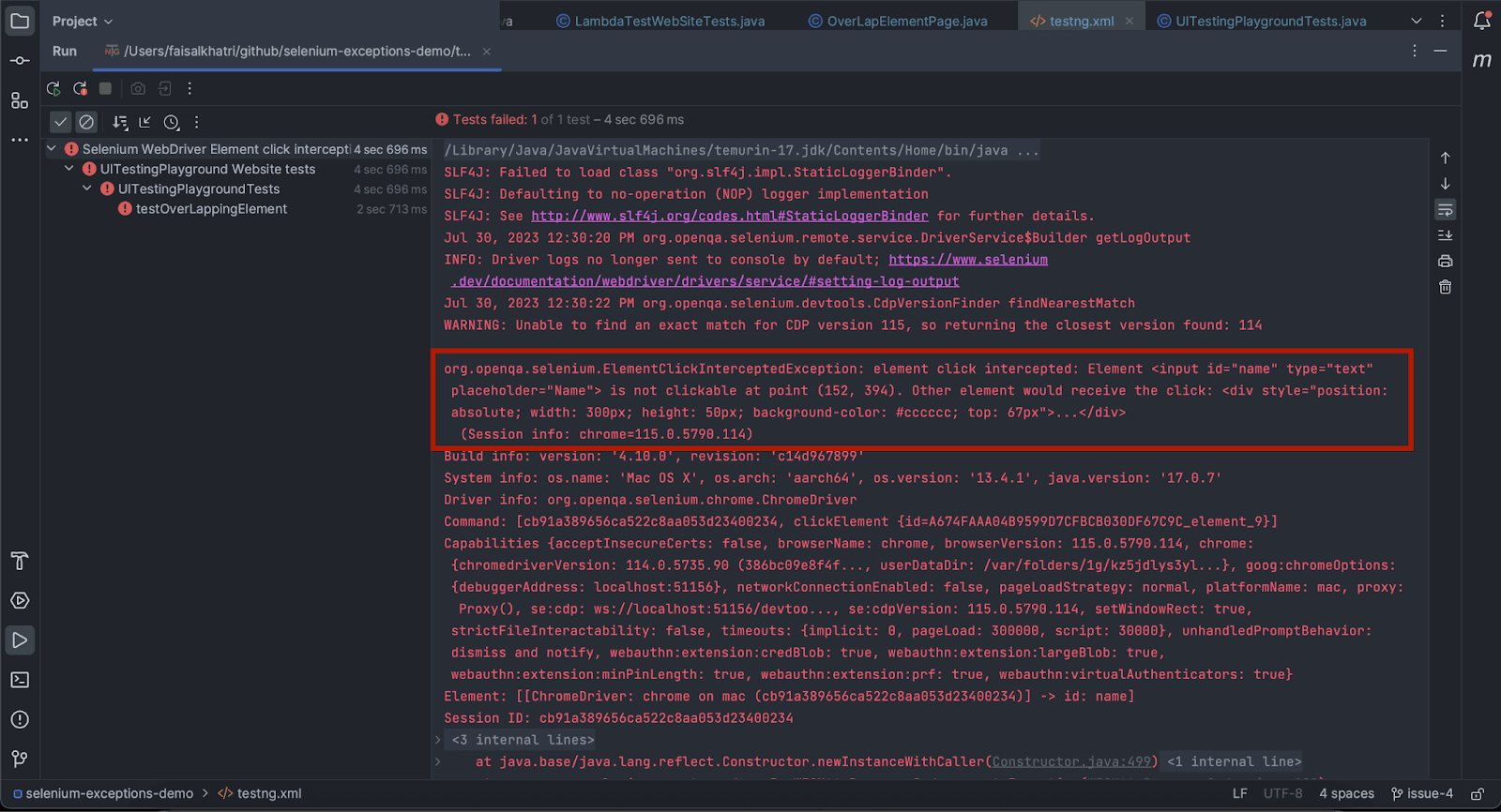
ElementClickInterceptedException |
Overlay or animation | Use explicit waits and scroll into view |
Scaling Up: Selenium Grid and Docker
Once local tests pass, the next step is parallel execution. Selenium Grid distributes tests across multiple machines and browsers through a hub-and-node model. In Selenium 4, the standalone mode is the simplest entry point:
java -jar selenium-server-4.27.0.jar standalone
Docker makes Grid reproducible. The official Selenium images let you spin up Chrome, Firefox, and Edge nodes with one command, which is ideal for CI pipelines. Combine Grid with a test framework such as TestNG, JUnit, or pytest to run suites in parallel and cut feedback time.
When Local Selenium Setup Is Not Enough
Selenium controls a browser, but it does not isolate that browser's identity. If your automation logs into multiple accounts on the same platform — marketplaces, ad accounts, social profiles — every session shares the same fingerprint unless you deliberately separate them. That is where an anti-detect browser layer becomes relevant.
Tools like AdsPower create isolated browser profiles, each with its own Canvas, WebGL, User Agent, and proxy configuration. You can drive those profiles with Selenium or Playwright through a local API, so each automated session looks like a distinct device rather than a repeated login from one machine. For teams running multi-account workflows, this combination is often more practical than juggling dozens of VMs.
If that matches your use case, the AdsPower and Python automation guide walks through the Local API setup with working code, and the automated data collection overview explains how to scale collection without tripping anti-bot defenses.
Best Practices for a Maintainable Setup
- Pin your Selenium version in
pom.xmlorrequirements.txtso builds are reproducible. - Use explicit waits instead of
time.sleep()to reduce flakiness. - Separate page objects from test logic so locator changes stay in one place.
- Run headless in CI, headed locally for debugging.
- Capture screenshots and logs on failure; they save hours of guessing.
- Keep browsers and drivers current — outdated pairs are the top cause of sudden breakage.
Related reading
- AdsPower vs Undetectable vs Genlogin: 2026 Comparison - Compare AdsPower, Undetectable, and Genlogin on fingerprints, automation, pricing, and team features to pick the right anti-detect browser for your workflow.
- Facebook Login: How to Sign In, Fix Problems, and Stay Secure - Learn how Facebook login works, how to sign in on any device, fix common login problems, recover your account, and keep multiple sessions secure.
- How to Use AdsPower with SMSPool for Multi-Account Verification - Step-by-step guide to pairing AdsPower anti-detect profiles with SMSPool phone verification: setup, API automation, practical examples, and pitfalls.
Sources and further reading
- Getting started - If you are new to Selenium, we have a few resources that can help you get up to speed right away.
- Setting Up Your First Selenium WebDriver Project: A Complete Guide - Oct 19, 2025 ... Step 1: Install Java JDK. Selenium WebDriver requires Java to run. · 1.1 Download Java JDK · 1.2 Install Java · 1.3 Set Environment Variables 4.
- Selenium Java Complete Project Setup | Step by Step - Enjoy the videos and music you love, upload original content, and share it all with friends, family, and the world on YouTube.
FAQ
Do I need to install ChromeDriver manually?
Usually no. Selenium 4.6 and later include Selenium Manager, which detects your browser version and downloads the matching driver automatically. Manual installation is still useful for offline CI environments or when you need a specific pinned version.
Which language should I choose for Selenium setup?
Java is common in enterprise QA teams and pairs well with Maven, TestNG, and Grid. Python is faster to set up and popular for scripting, data work, and smaller automation projects. Both support the same WebDriver features, so pick based on your team's existing skills.
Why does my Selenium script fail with SessionNotCreatedException?
This almost always means the browser and driver versions do not match. Update your browser to the latest stable release, delete any manually installed driver, and let Selenium Manager fetch a compatible one.
Can I run Selenium on a server without a display?
Yes. Use headless mode (--headless=new for Chrome, -headless for Firefox) or run inside a container with the official Selenium Docker images. Headless execution is standard practice in CI pipelines.
Is Selenium enough for multi-account automation?
Selenium handles browser control, but it does not isolate fingerprints or proxies. For multi-account workflows, pair Selenium with an anti-detect browser that provides separate profiles, or use a dedicated automation API. See the AdsPower and Python guide for a concrete setup.
Conclusion
A reliable Selenium setup comes down to four things: the right language runtime, a matching browser and driver, a build tool or virtual environment, and a verification test you actually run. Start with Selenium Manager for driver handling, add explicit waits early, and move to Grid or Docker only when parallel execution becomes a real need. If your automation touches multiple accounts on the same platform, layer in profile isolation before you scale — it is far easier to design in from the start than to retrofit later.