
How to Use AdsPower with IPBurger: Setup, Workflow & Tips
Take a Quick Look
Learn how to integrate IPBurger proxies with AdsPower. Step-by-step setup, proxy type selection, and best practices for multi-account management.
How to Use AdsPower with IPBurger: Setup, Workflow & Tips
AdsPower is a powerful anti-detect browser that lets you manage multiple online accounts from a single device by creating isolated browser profiles with unique fingerprints. But fingerprints alone aren't enough—platforms also check your IP address. That's where IPBurger comes in. By pairing AdsPower's fingerprint isolation with IPBurger's premium proxies, you get a robust setup that minimizes bans and maximizes success. This guide walks you through the integration, from choosing the right proxy type to configuring and verifying your connection.
Why Pair AdsPower with IPBurger?
AdsPower excels at masking browser fingerprints—Canvas, WebGL, User-Agent, and more—so each profile appears as a distinct device. However, if all profiles share the same IP address, platforms can easily link them. IPBurger provides dedicated, high-quality IPs that match your profiles' intended locations, completing the anonymity equation.
Key benefits of the combination:
- Avoid account linking: Each profile gets its own IP, preventing platforms from associating accounts.
- Geo-consistency: Match IP location with profile timezone and language for a natural appearance.
- High success rate: IPBurger's 99.95% success rate and large IP pool (100M+ across 195+ countries) reduce blocks.
- Scalability: Easily assign proxies to hundreds of profiles with AdsPower's batch tools.
Understanding Proxy Types for AdsPower
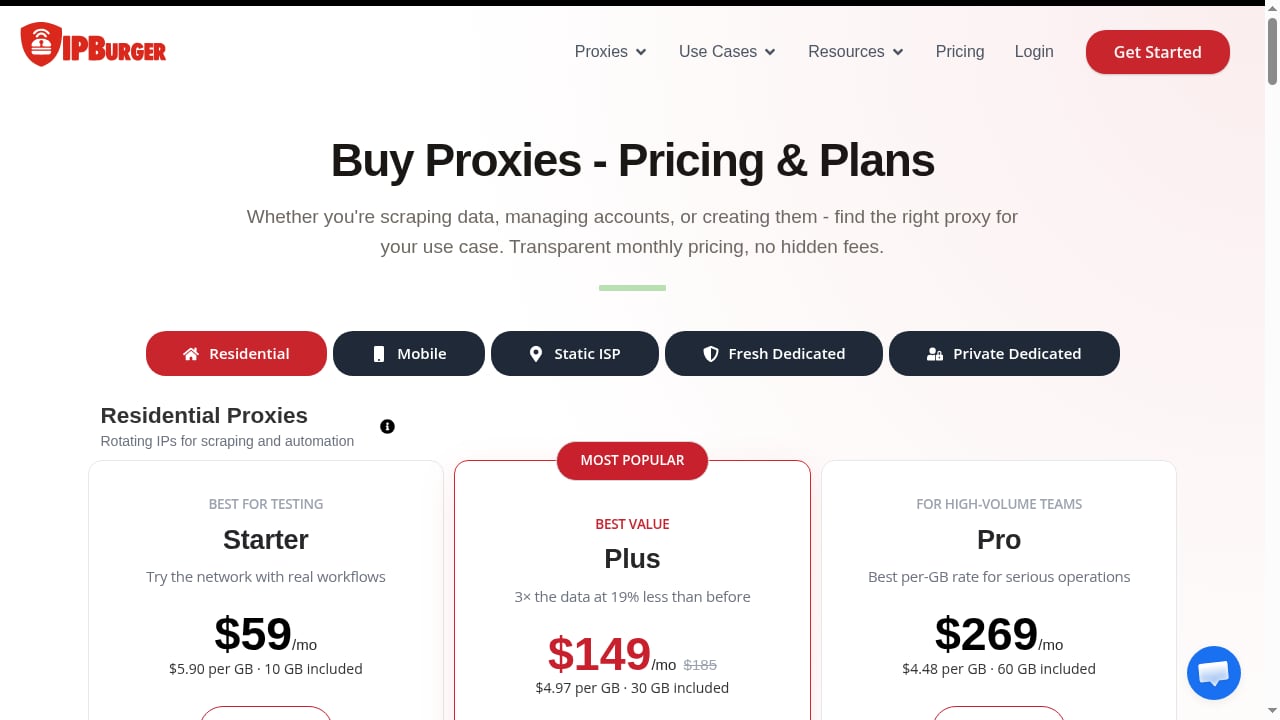
First viewport screenshot of www.ipburger.com.
Not all proxies are equal. The right choice depends on your use case:
- Residential proxies: Rotating IPs from real devices. Ideal for account creation and warming, where you need fresh IPs frequently.
- Static residential (ISP) proxies: Dedicated IPs that remain constant. Best for long-term management of social media, e-commerce, or ad accounts.
- Mobile proxies: Highest trust level, suitable for mobile-first platforms. More expensive but harder to detect.
- Datacenter proxies: Fast and cheap but easily flagged. Only for low-risk scraping where session loss is acceptable.
For most multi-account management, static ISP proxies offer the best balance of stability and trust. Use residential proxies for high-volume creation and mobile proxies for high-stakes accounts.
Step-by-Step: Configuring IPBurger Proxies in AdsPower
First viewport screenshot of www.ipburger.com.
1. Obtain Your IPBurger Proxy Credentials
After signing up with IPBurger, you'll receive proxy host, port, username, and password. You can choose from residential, static ISP, mobile, or dedicated IPs. For this guide, we'll use static ISP proxies as an example.
2. Create a New Profile in AdsPower
Log in to AdsPower and click New Profile. Fill in the basic information (profile name, group, etc.).
3. Configure Proxy Settings
In the profile creation window, navigate to the Proxy tab. Select Custom as the proxy type, then choose your protocol (HTTP, HTTPS, SOCKS5, or SSH). IPBurger supports HTTP/HTTPS/SOCKS5—SOCKS5 is recommended for better anonymity and handling of various traffic types.
Enter the proxy details:
- Proxy host: The IP address or hostname provided by IPBurger.
- Proxy port: The port number.
- Proxy username: Your IPBurger username.
- Proxy password: Your IPBurger password.
Alternatively, paste the proxy in IP:port:user:pass format and click Check Proxy to auto-fill.
4. Verify the Connection
Click Check Proxy to test the connection. AdsPower will display the detected IP address, location, and timezone. Ensure these match your profile's intended settings. If the check fails, double-check your credentials and protocol.
5. Save and Launch
Once verified, save the profile. You can now launch it, and all traffic will route through the IPBurger proxy.
Bulk Proxy Assignment for Scale
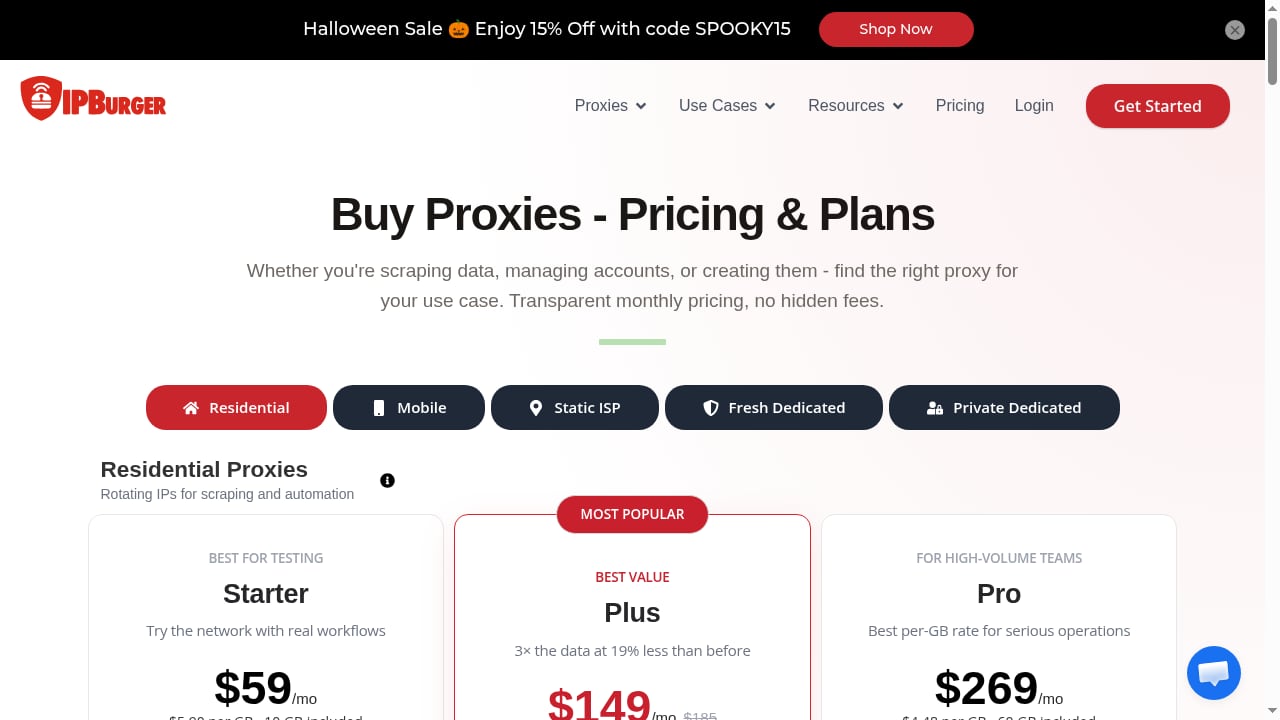
First viewport screenshot of www.ipburger.com.
If you manage many profiles, manually configuring each proxy is tedious. AdsPower offers bulk proxy assignment:
- Go to the Profiles list and select multiple profiles.
- Click Bulk Actions > Update Proxy.
- Paste a list of proxies in
IP:port:user:passformat, one per line. - AdsPower will assign them sequentially or randomly. You can also use the API for programmatic assignment.
For more advanced scaling, explore bulk actions for profiles to streamline your workflow.
Practical Examples
Example 1: E-commerce Seller Managing Multiple Storefronts
An Amazon seller operates five stores in different countries. Each store requires a separate account with a local IP to avoid suspension. Using AdsPower, they create five profiles, each configured with a static ISP proxy from IPBurger matching the store's country. The profiles have unique fingerprints and consistent geolocation, reducing the risk of linkage.
Example 2: Social Media Marketing Agency
An agency manages 50 Facebook ad accounts for clients. They use AdsPower's team collaboration features to assign profiles to team members. Each profile is paired with a dedicated IPBurger residential proxy (rotating for new accounts, static for established ones). The agency uses AdsPower's RPA to automate routine actions like posting and liking, while IPBurger ensures each account appears to originate from a distinct, trustworthy location.
Example 3: Web Scraping at Scale
A data collection firm scrapes e-commerce sites for pricing intelligence. They need thousands of IPs to avoid rate limits. AdsPower's API is used to programmatically create profiles, each assigned a rotating residential proxy from IPBurger. The combination allows them to distribute requests across many IPs and fingerprints, mimicking organic traffic.
Common Pitfalls and How to Avoid Them
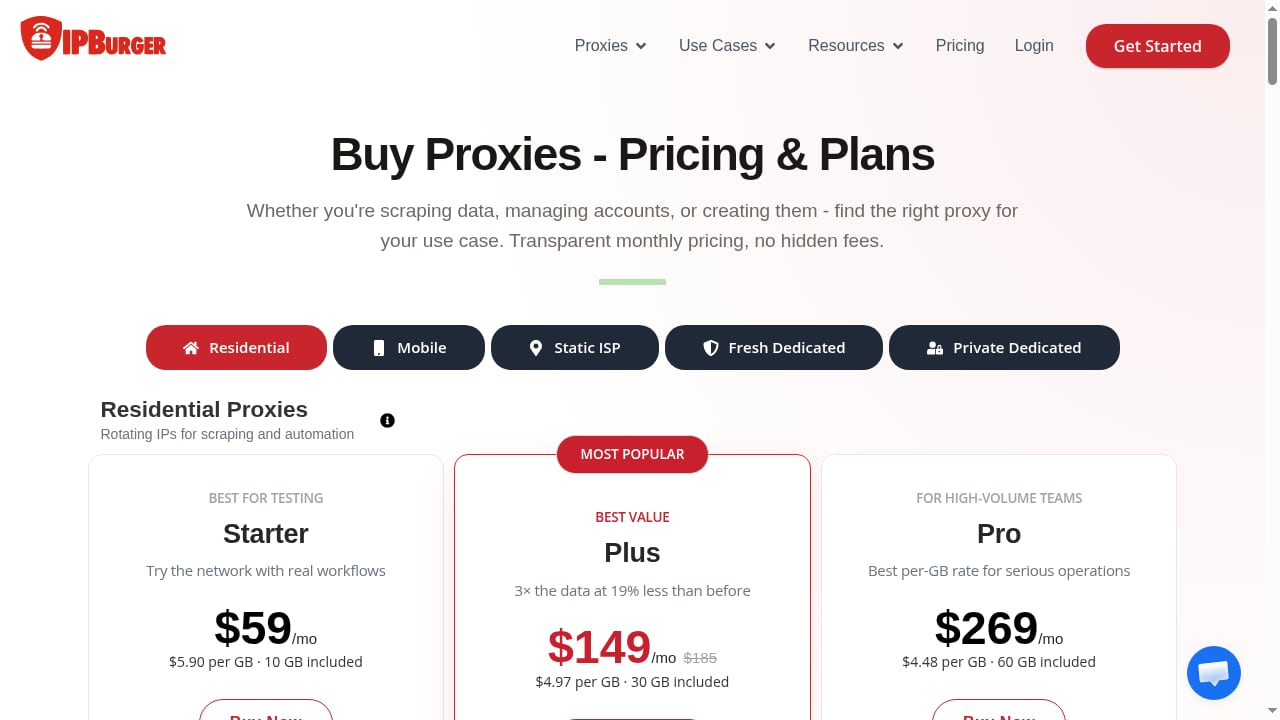
First viewport screenshot of www.ipburger.com.
- Geo mismatch: Ensure the proxy's location matches the profile's timezone and language. AdsPower's proxy checker shows the detected location—use it.
- Shared IPs: Never reuse an IP across profiles. IPBurger's dedicated IPs ensure exclusivity.
- Dirty IPs: Choose a provider with a clean IP pool. IPBurger's IPs are carefully managed to avoid prior bans.
- Protocol mismatch: Use SOCKS5 for better compatibility, especially with automation tools.
- Ignoring WebRTC: AdsPower can mask WebRTC, but ensure it's enabled to prevent IP leaks.
AdsPower and IPBurger: A Powerful Combination
By integrating IPBurger with AdsPower, you address both fingerprint and IP layers of detection. This synergy is essential for anyone serious about multi-account management, whether in e-commerce, affiliate marketing, or social media. For a deeper dive into anti-detect browser comparisons, see our top 10 anti-detect fingerprint browsers and AdsPower vs Octo Browser vs StealthBrowser.
Related reading
- AdsPower vs Octo Browser vs StealthBrowser: 2026 Comparison - Compare AdsPower, Octo Browser, and StealthBrowser for multi-accounting and automation. See fingerprinting, scaling, pricing, and which fits your workflow.
- AdsPower vs MoreLogin: Cloud Phone & Antidetect Browser - Compare AdsPower and MoreLogin for multi-account management: fingerprinting, automation, team features, pricing, and cloud phone support.
- Undetectable.io Review 2026: Anti-Detect Browser for Mac & Windows - Evidence-based Undetectable.io review: fingerprint isolation, team features, pricing signals, setup steps, and who should choose it for multi-accounting.
Sources and further reading
- Maximizing AdsPower: A Guide to Integrating Proxies - Are you sick of using AdsPower and having your IP blocked or banned? Look no further because Adspower proxies are here to save the day!
- Best Proxy Settings for GoLogin, AdsPower, and Multi-Login Browser Proxies in 2026 - Learn the best proxy settings for GoLogin, AdsPower, and ensure success with multi-login browser proxies in 2026 to avoid account bans.
- How to Set Up Proxies in AdsPower [2026] - YouTube - Adspower proxy setup made easy. Learn how to configure an Adspower proxy and choose the right proxies for Adspower in this step-by-step guide.In this tutoria...
Frequently Asked Questions
How do I add a proxy to AdsPower?
In AdsPower, create or edit a profile, go to the Proxy tab, select Custom, enter the proxy details (host, port, username, password), and click Check Proxy to verify before saving.
Which proxy type is best for AdsPower?
For long-term account management, static residential (ISP) proxies are best. For account creation and high-volume tasks, rotating residential proxies work well. Mobile proxies offer the highest trust for sensitive accounts.
Can I use IPBurger's VPN with AdsPower?
IPBurger offers a VPN, but for multi-account management, proxies are recommended because they allow per-profile IP assignment. A VPN typically routes all traffic through a single IP, which defeats the purpose of isolated profiles.
How many proxies do I need for AdsPower?
One dedicated proxy per profile is ideal. Shared IPs can link accounts. For example, if you have 20 profiles, you need 20 proxies.
Does AdsPower work with SOCKS5 proxies?
Yes, AdsPower supports HTTP, HTTPS, SOCKS5, and SSH. SOCKS5 is recommended for its flexibility and anonymity.
How do I verify my proxy is working in AdsPower?
Use the built-in Check Proxy button. It displays the IP address and location. You can also launch the profile and visit an IP lookup site to confirm.
Conclusion
Combining AdsPower's fingerprint isolation with IPBurger's reliable proxies creates a robust environment for managing multiple accounts. By following the setup steps and best practices outlined here, you can minimize bans, improve success rates, and scale your operations efficiently. Whether you're an e-commerce seller, marketer, or data collector, this integration empowers you to work smarter and safer.
For more insights on anti-detect browsers, explore our AdsPower vs MoreLogin comparison and other resources.


