
AdsPower + IPBurger: Setup Guide for Multi-Account Management
Take a Quick Look
Step-by-step guide to integrate IPBurger proxies with AdsPower fingerprint browser. Manage multiple accounts securely, avoid bans, and automate workflows.
🔥 Limited-Time Offer! Save extra 10% off on your first monthly plan with code: Anitdetect10
Sign upHow to Use AdsPower Fingerprint Browser with IPBurger Proxy Services
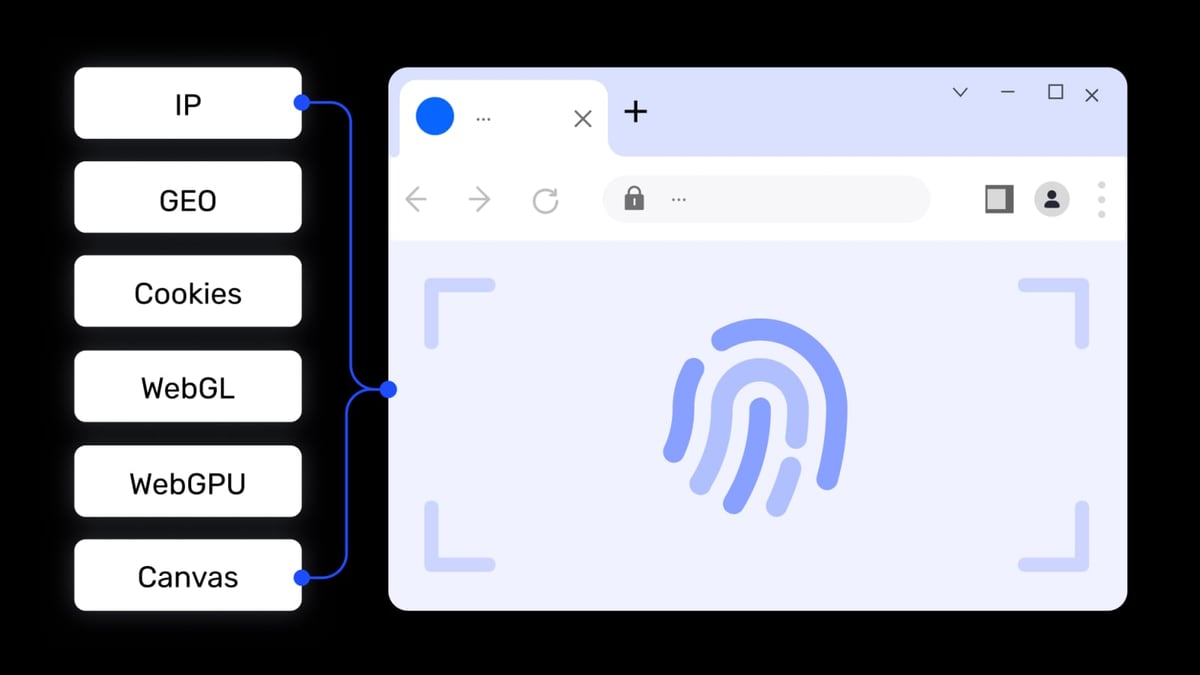
Managing multiple online accounts without getting blocked or banned is a constant challenge for e-commerce sellers, affiliate marketers, and social media managers. Platforms like Amazon, Facebook, Google, and TikTok use sophisticated tracking to detect and link accounts that share the same browser fingerprint or IP address. The solution? Combine an anti-detect browser with a high-quality proxy service. This guide shows you exactly how to use AdsPower fingerprint browser with IPBurger Proxy Services to create isolated, secure browsing environments that keep your accounts safe.
Why Combine AdsPower with IPBurger?
AdsPower + IPBurger: Setup Guide for Multi-Account Management product interface and feature overview.
AdsPower is a professional anti-detect browser that creates isolated browser environments with unique digital fingerprints. It prevents platforms from detecting that multiple accounts are being managed from the same device. However, even with a unique fingerprint, your IP address can still give you away. That's where IPBurger comes in.
IPBurger provides premium proxy services—including rotating residential proxies, static ISP proxies, and dedicated private IPs—that give each browser profile its own clean, geographically appropriate IP address. Together, they form a powerful stack for multi-account management, web scraping, and ad verification.
Problems This Combination Solves
- Account bans and suspensions: Unique fingerprints plus unique IPs drastically reduce the risk of platform detection.
- IP blacklisting: IPBurger's residential and mobile proxies use real ISP-assigned IPs that are less likely to be flagged.
- Geolocation mismatches: Match your proxy location to your target audience or account region.
- Account association: Each browser profile gets its own fingerprint and IP, making it nearly impossible for platforms to link them.
What You Need Before You Start

AdsPower + IPBurger: Setup Guide for Multi-Account Management product interface and feature overview.
Before diving into the setup, make sure you have:
- An AdsPower account – Sign up for free (the free plan includes 2 browser environments, enough to test the workflow).
- AdsPower desktop application – Download and install the version for your operating system (Windows, macOS, or Linux) from the official site.
- An IPBurger account – Choose a proxy plan that fits your use case. For most multi-account management scenarios, rotating residential proxies or static ISP proxies work best.
- Your proxy credentials – IPBurger will provide you with the proxy host, port, username, and password.
Step-by-Step Setup Guide
AdsPower + IPBurger: Setup Guide for Multi-Account Management product interface and feature overview.
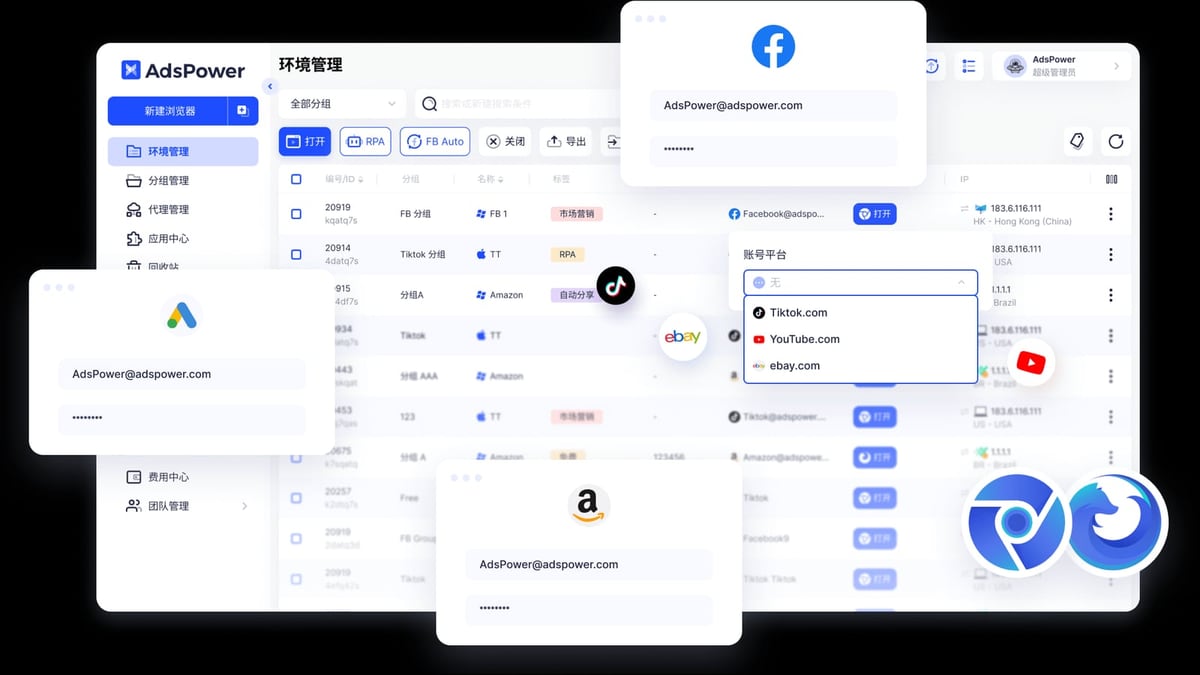
Step 1: Create a New Browser Profile in AdsPower
- Open the AdsPower application.
- Click the + New Profile button.
- Give your profile a descriptive name (e.g., "Amazon Seller US – IPBurger New York").
- Optionally, assign the profile to a group or add tags for easier organization.
- Choose your browser kernel – Chrome (SunBrowser) or Firefox (FlowerBrowser). For most users, Chrome is recommended for broader compatibility.
- Select the operating system and user agent that match your target environment. A good rule of thumb: match the OS to your actual computer for better performance.
Step 2: Configure the Proxy Settings
Scroll down to the Proxy section.
In the proxy type dropdown, select Custom Proxy.
Choose the protocol that matches your IPBurger proxy. AdsPower supports:
- HTTP/HTTPS
- SOCKS5
- SSH
IPBurger provides HTTP, HTTPS, and SOCKS5 proxies. SOCKS5 is generally preferred for better compatibility with browser traffic.
Enter your IPBurger proxy details:
- Proxy Host: The IP address or hostname provided by IPBurger (e.g.,
residential.ipburger.com) - Port: The port number (e.g.,
1080for SOCKS5) - Proxy Username: Your IPBurger username
- Proxy Password: Your IPBurger password
- Proxy Host: The IP address or hostname provided by IPBurger (e.g.,
Click the Check Proxy button to test the connection. If successful, you'll see a green "Connection test passed" message along with the IP address and location.
If the test fails, double-check your credentials and proxy server details. Also ensure your firewall or antivirus isn't blocking the connection.
Click OK to save the profile.
Step 3: Launch and Verify Your Profile
- In the Profiles list, find your new profile and click the Open button.
- A new browser window will launch with the fingerprint and proxy applied.
- To verify everything is working correctly, visit a site like BrowserScan or
whatismyipaddress.com. Check that:- The displayed IP matches your IPBurger proxy IP.
- The browser fingerprint parameters (Canvas, WebGL, Audio, etc.) appear unique and consistent.
Step 4: Manage Multiple Profiles with Batch Proxy Import
If you're managing dozens or hundreds of accounts, manually entering proxy details for each profile is inefficient. AdsPower's proxy management feature lets you import multiple proxies at once.
- In the left sidebar, click Proxies.
- Click Add Proxy.
- Paste your list of IPBurger proxies in the supported format. For example:
You can add a remark in curly bracesresidential.ipburger.com:1080:username1:password1{Remark} residential.ipburger.com:1080:username2:password2{Remark}{}at the end to label each proxy. - Click Check Proxy to test all connections simultaneously.
- Click OK to save the proxies to your list.
- When creating new profiles, you can now select Saved Proxies instead of Custom Proxy and choose from your imported list.
Practical Examples

AdsPower + IPBurger: Setup Guide for Multi-Account Management product interface and feature overview.
Example 1: Managing Multiple Amazon Seller Accounts
Scenario: You run three Amazon seller accounts targeting different regions (US, UK, and Germany).
Setup:
- Create three AdsPower profiles: "Amazon US", "Amazon UK", "Amazon DE".
- For each profile, assign an IPBurger static ISP proxy in the corresponding country.
- Ensure each profile has a unique browser fingerprint (AdsPower handles this automatically).
- Open each profile and log in to the respective Amazon account.
Result: Amazon sees three completely different users from different locations and devices, even though you're working from a single computer.
Example 2: Social Media Automation for Affiliate Marketing
Scenario: You run multiple Instagram and TikTok accounts to promote affiliate products.
Setup:
- Create a separate AdsPower profile for each social media account.
- Assign IPBurger rotating residential proxies to each profile. Rotating proxies change your IP periodically, mimicking natural user behavior.
- Use AdsPower's built-in RPA automation to schedule posts and engage with followers.
Result: Social platforms see authentic user behavior with fresh IPs, reducing the risk of shadowbans or account suspensions.
Best Practices for Optimal Performance
- Match proxy type to use case: For e-commerce and social media account management, static ISP proxies or dedicated residential IPs offer stability. For web scraping, rotating residential proxies are better.
- Test proxies regularly: Use AdsPower's proxy check feature to ensure all proxies are active and have good latency.
- Monitor fingerprint consistency: Periodically scan your profiles with BrowserScan to confirm fingerprints haven't leaked real device information.
- Use groups and tags: Organize profiles by platform, campaign, or team member to stay organized.
- Leverage automation: AdsPower's RPA and API support (compatible with Selenium, Puppeteer, Playwright) can automate repetitive tasks like account creation and data entry.
Related reading
- AdsPower vs Kameleo: Which Anti-Detect Browser Wins in 2026? - Compare AdsPower and Kameleo anti-detect browsers. Features, automation, pricing, and which one fits your multi-account workflow.
- Dolphin Anty Review 2026: Features, Pricing & Use Cases - Honest Dolphin Anty review: features, pricing, pros/cons, and real use cases for affiliate marketers, ecom sellers, and teams managing multiple accounts.
- Top 10 Device Intelligence Platforms 2026 - Discover the 10 best device intelligence platforms for 2026. Compare features, fraud prevention, and pricing to choose the right solution.
Sources and further reading
- Proxies: Add, Buy, Renew, Check, Filter - If you still have no idea what a proxy is and how does it work, check this video below:
AdsPower Browser neither provides proxies nor has any proxies built in. However, the Proxies section allows you to save
- Setting Up Proxies on AdsPower: A Complete Guide - Master AdsPower proxy integration with our comprehensive guide. Learn to set up and manage your proxies efficiently.
- Proxy Types - AdsPower Browser supports all popular proxy protocols, such as HTTP/HTTPS, socks5, or ssh. In addition to the IPv4 protocol, AdsPower Browser also supports IPv6 proxies, which is way better than IP version 4 in
Frequently Asked Questions
Can I use IPBurger proxies with AdsPower's free plan?
Yes. The free plan includes 2 browser environments, which is enough to test the integration. For larger operations, you'll need a paid plan.
What proxy protocol should I choose?
SOCKS5 is generally recommended for browser traffic because it handles all types of data (HTTP, HTTPS, and others). However, HTTP/HTTPS also works fine for most web browsing.
Does AdsPower provide proxies?
No. AdsPower is a browser tool, not a proxy provider. You must purchase proxies separately from a provider like IPBurger. AdsPower does offer proxy purchasing through its platform via FlashID, but for premium residential and mobile proxies, IPBurger is a better choice.
How do I know if my proxy is working correctly?
Use the Check Proxy button in AdsPower's proxy settings. You can also visit an IP checker site inside the launched browser profile to confirm the IP and location.
Can I use the same IPBurger proxy for multiple AdsPower profiles?
Technically yes, but it defeats the purpose of isolation. For true account separation, each profile should have its own unique IP address.
Conclusion
Combining AdsPower fingerprint browser with IPBurger Proxy Services gives you a robust, professional-grade setup for managing multiple online accounts securely and efficiently. By isolating both browser fingerprints and IP addresses, you dramatically reduce the risk of account bans, association, and blacklisting.
Whether you're an e-commerce seller, affiliate marketer, or social media manager, this workflow lets you scale your operations without needing multiple devices or risking your accounts. Start with a free AdsPower account, grab a suitable IPBurger proxy plan, and follow the steps above to build your secure multi-account environment today.
For more comparisons and insights, check out our AdsPower vs Linken Sphere vs Multilogin comparison and our AdsPower vs Dolphin Anty comparison to see how AdsPower stacks up against other anti-detect browsers.